Vinaa 1.0 — Vinaa is out of beta. Thank you to everyone who tested it and sent feedback.
See who made each model — models from OpenRouter, other gateways and local servers show their maker's icon, and the model picker's "/" filter has a new "Made by" section.
Sync status opens Sync settings — click the sync status in the sidebar to go straight to Settings → Sync.
Backup progress — Export All Data shows its progress, then the saved file with Show in Finder.
Connections that need setup — a connection whose API key isn't on this Mac is marked "Setup required", and its models are dimmed in the model picker.
PDF table of contents — exported PDFs now have a table of contents.
Fixes
Claude plan chats no longer fail after Vinaa has been idle.
Using MCP tools no longer briefly freezes the app.
A message that fails right away no longer leaves the chat blank.
The model picker no longer shows an empty list when you type straight after opening it.
Failed MCP tool calls show as failed, with a clearer message when a server can't be reached.
A chat whose first message failed now gets a title once a later message succeeds.
Pasting a copied screenshot attaches it.
If you tested the beta, your Mac gets a new 14-day trial starting from the 1.0 release. If you already have a license, nothing changes.
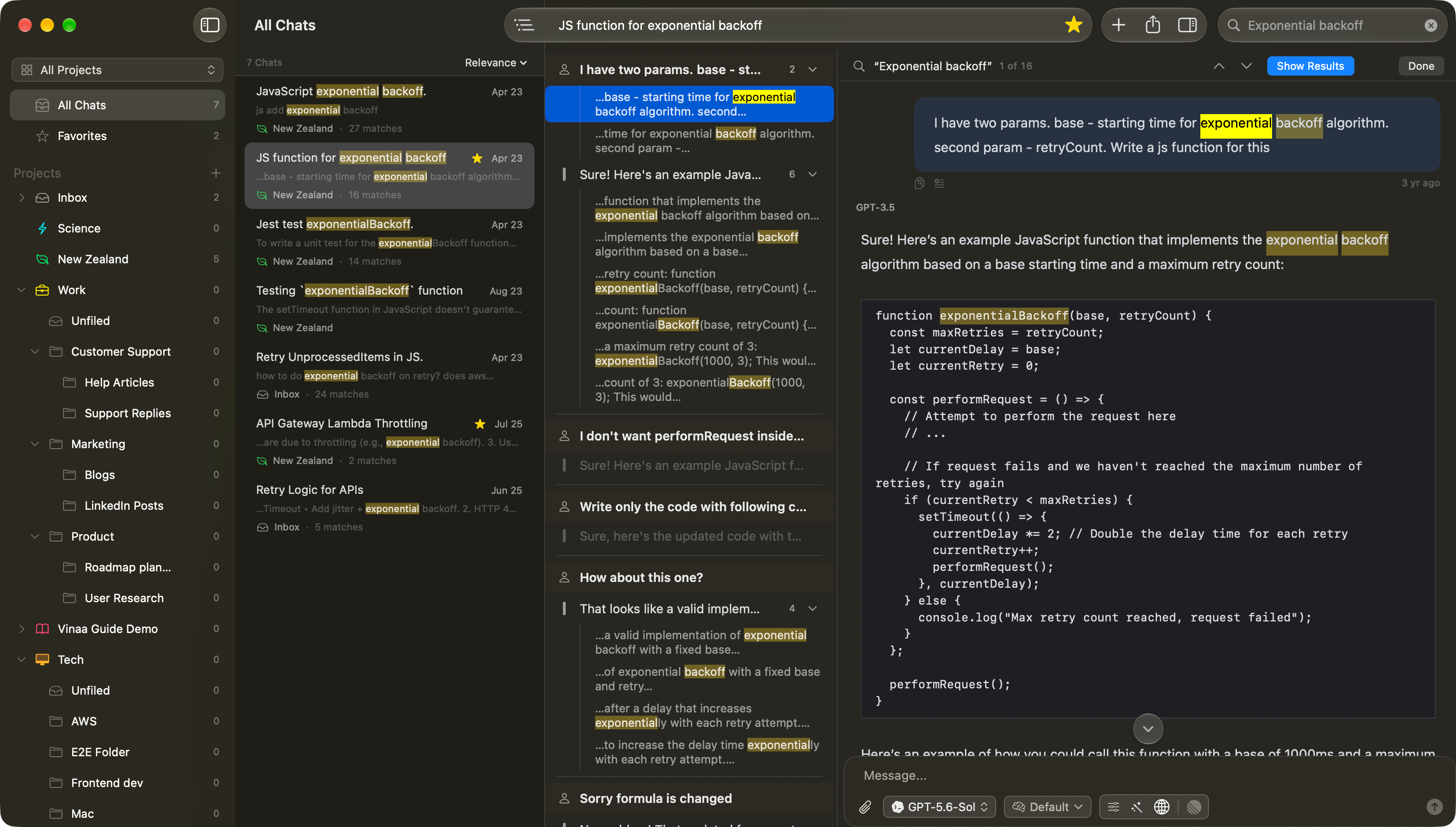
Full-text search — press ⌥⌘F to search the text of every message in every chat, not just chat titles.
Type a few words to find the messages that contain all of them, in any order. Put words in quotes to find that exact phrase.
Click a result to open the chat at the matching message. Use the arrows to move between matches, or press ⌘F to see them all in Find in Chat.
Tidier replies — when the AI thinks or uses tools, those steps now fold into one line that shows what it's doing right now. When it's done, the line shows a short summary, and you can click it to see each step.
Long messages — a long message you sent shows its first few lines with Show More. Line breaks in messages you paste are now kept.
New providers — Moonshot AI (Kimi), Z.ai (GLM), Alibaba Cloud (Qwen) and Baseten. On macOS 27, Apple Foundation Models runs Apple's on-device model for free, with no API key.
Redesigned Connections settings — adding a connection now walks you through it in steps: choose a provider, set it up, then pick your models. All providers share one model list, which shows prices and lets you star and filter models. Each connection has one page with its models, an Edit… button and Delete at the bottom. MCP Servers, Prompts and License follow the same layout.
Source numbers in answers — when an answer cites its sources, numbered links like [1] show in the text and match the sources list below it.
Max reasoning on more models — the Max reasoning setting now works the same way across OpenAI, Anthropic, Google, xAI, DeepSeek and Mistral models.
Fixes
Long chats no longer stop with an "HTTP 400" error as they get close to the model's limit.
OpenRouter's Auto Router and Kimi models no longer fail on every message.
LM Studio chats now fit the context size the model is loaded with.
Error messages show the provider's own reason. You can select or copy them, and Report a Problem includes them.
When a provider's free plan doesn't allow a feature (for example, Gemini with Google Search), Vinaa shows Google's message instead of retrying.
Long chats scroll smoothly, even while a response is streaming.
Vinaa no longer freezes at launch when you have many connections.
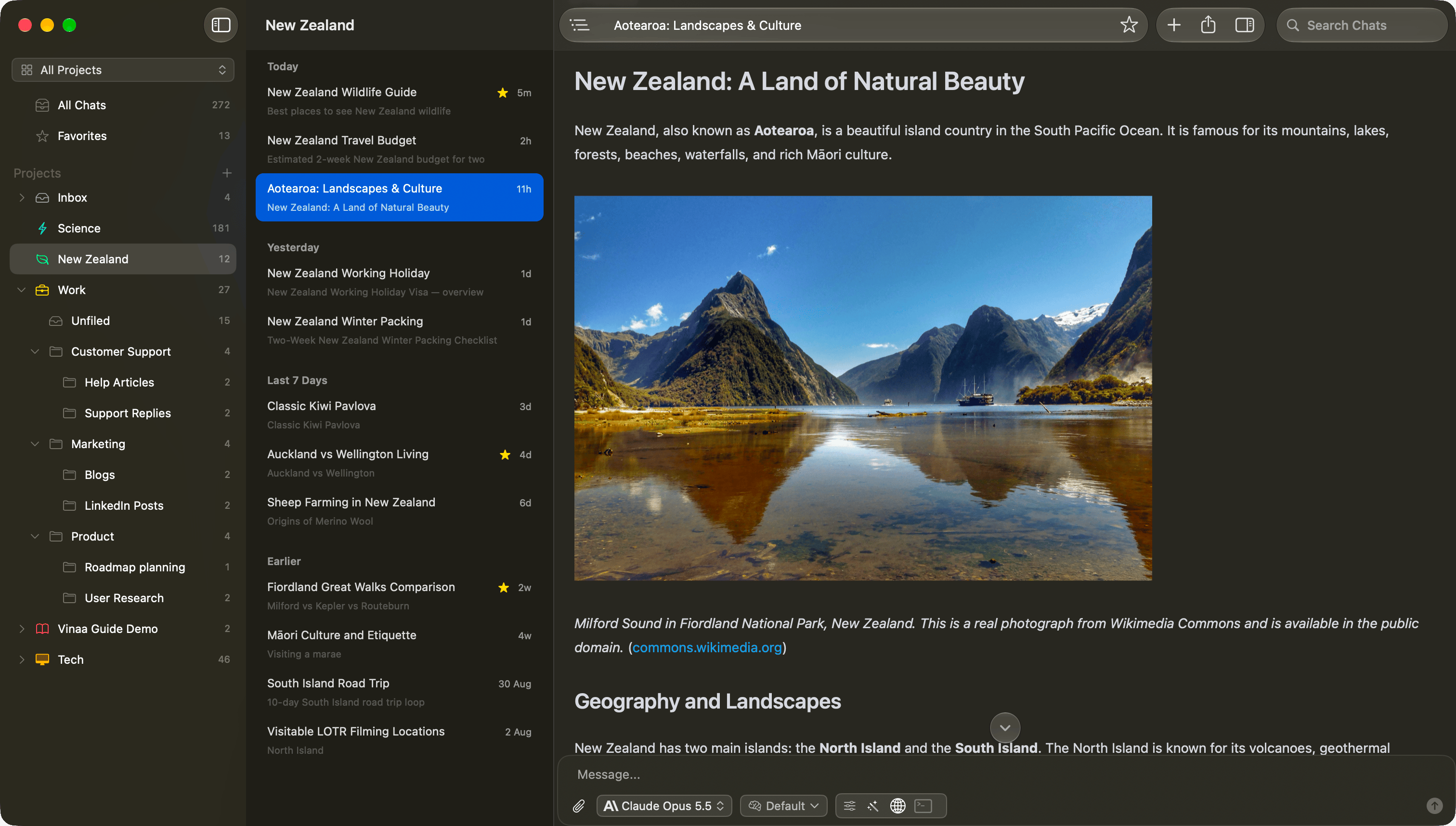
All your projects in one sidebar — the sidebar now shows every project at once, with their folders and chats.
Focus on one project — choose a project at the top of the sidebar (⇧⌘P) to show only its folders and chats in that window. Other windows keep their own choice.
Go to Project or Folder — press ⌥⌘O and type to jump to any project or folder.
Show in — right-click a chat and choose Show in to jump to its project or folder.
Reorder projects — drag projects into the order you like, or use Move Up / Move Down (⌥⌘↑ / ⌥⌘↓).
Archive projects — archive a project to hide it and its chats; unarchive it any time.
Find in Chat — press ⌘F to search the whole conversation, step through matches with ⌘G / ⇧⌘G, and turn on Show Results to see every match in the sidebar.
Text Size — make text bigger or smaller everywhere with ⌘+ and ⌘−, and reset it with ⌘0 (View menu).
Buy licenses for more Macs — Settings → License → Add More Macs opens your license on vinaa.ai, where you can see the Macs using it and buy more.