Connect an AI provider
Add a cloud provider, local model server, or Codex CLI connection to Vinaa.
Written By Sujeevan Nagarajah
Last updated 3 months ago
Vinaa needs at least one working AI connection before it can send messages.
Open AI Models settings
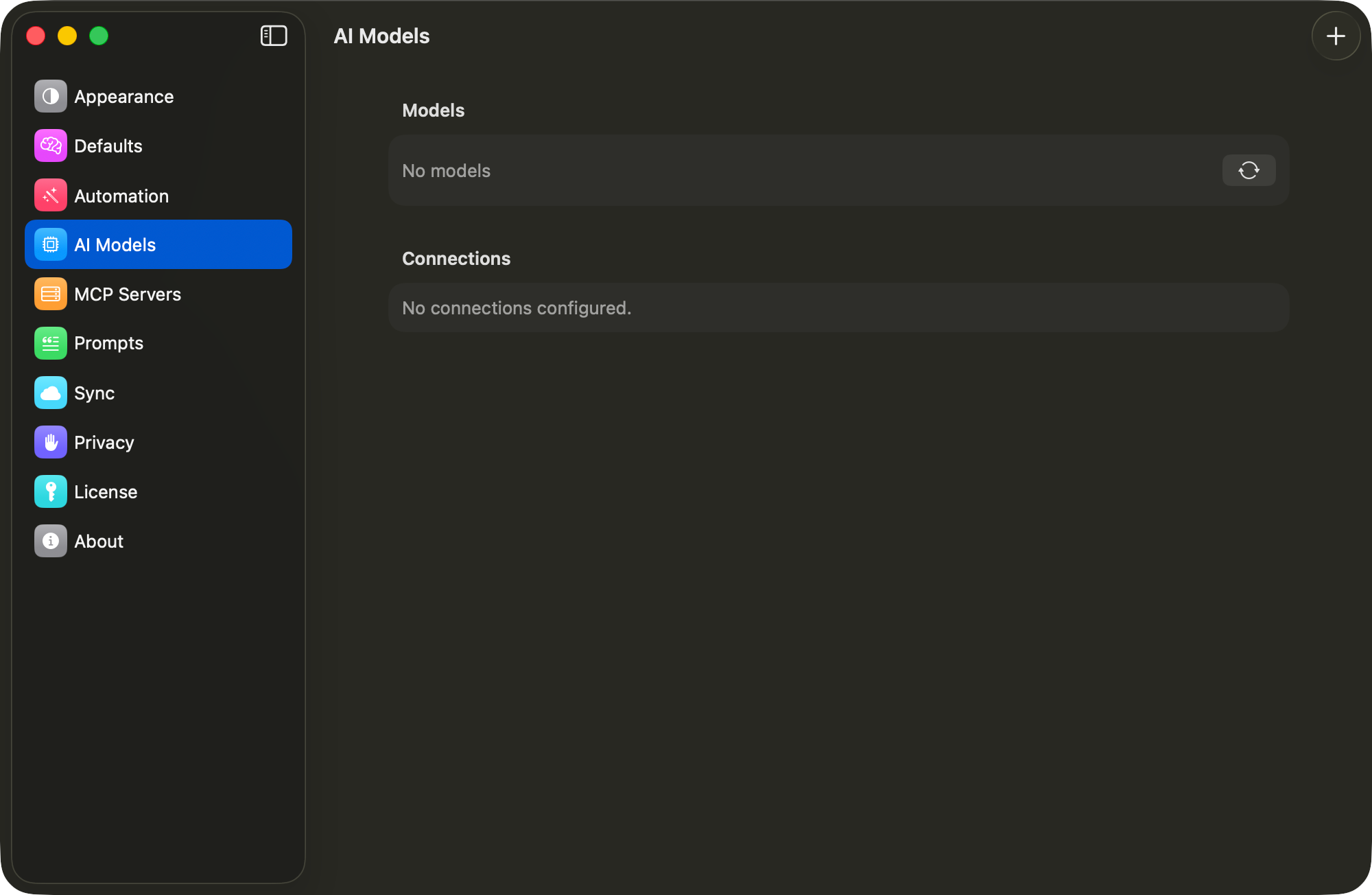
Choose Vinaa → Settings or press Command-Comma.
Select AI Models.
Click Add Connection in the toolbar.
Select a provider
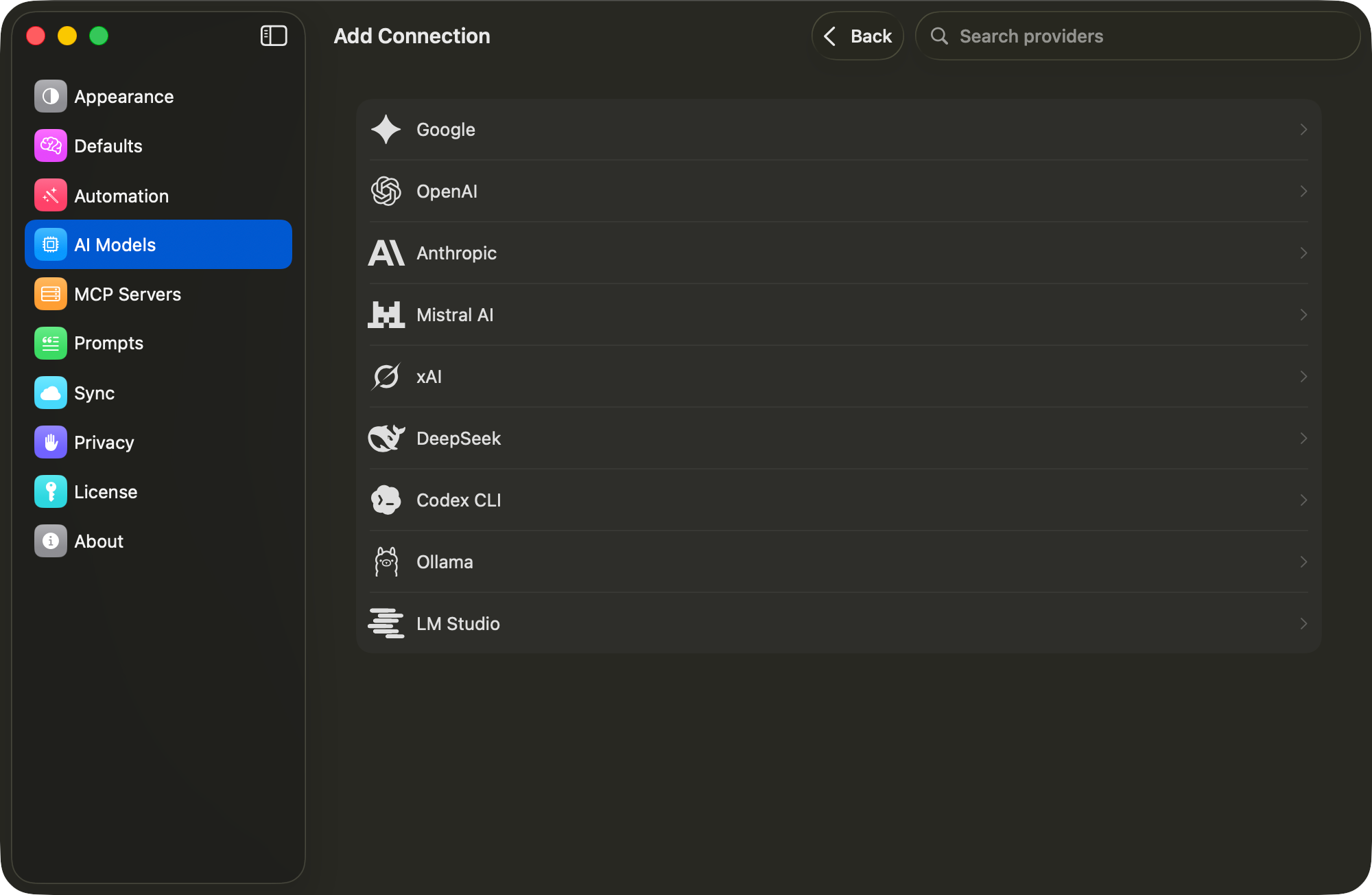
Choose one of the available providers:
API key: Google, OpenAI, Anthropic, Mistral AI, xAI, or DeepSeek.
Local server: Ollama or LM Studio.
Codex CLI: Configure the existing Codex CLI connection shown in AI Models settings.
Connect with an API key
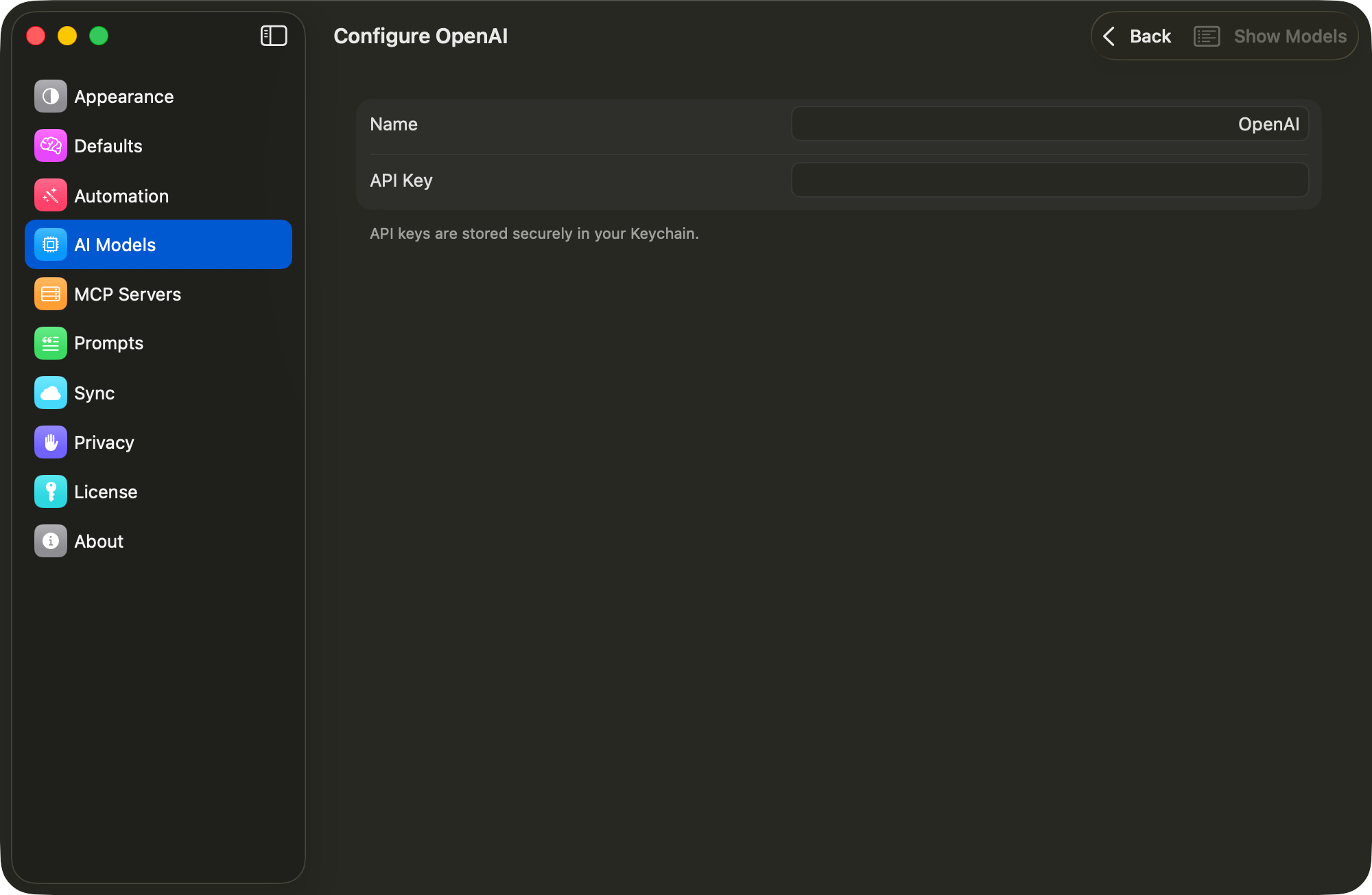
Enter the API key from your provider account.
Wait while Vinaa validates the connection and loads its models.
Review the available models.
Optionally select your favorite models
Save the connection.
Connect a local model server
Start Ollama or LM Studio on your Mac.
Select the matching provider in Vinaa.
Check the local server address.
Validate the connection.
Save it when Vinaa can reach the server.
Vinaa cannot start or download local models for you. The local server and at least one model must already be available.
If a connection does not work
Check that:
The API key is complete and has not expired.
Your Mac is connected to the internet for cloud providers.
The Ollama or LM Studio server is running for local providers.
The server address and port are correct.
Use the Sync button in AI Models settings to refresh model availability after fixing the connection.
Was this helpful?
Still need help? Ask the team