Create and manage projects
Create a project, change its settings, and understand its model and automation defaults.
Written By Sujeevan Nagarajah
Last updated 3 months ago
Create a project when a group of conversations shares the same topic, instructions, or preferred model.
Create a project
Choose File → New Project.
Enter a project name.
Choose an icon and color if needed.
Optionally choose a default model.
Review the project's chat instructions.
Click Create.
Vinaa selects the new project and opens a blank chat.
Open Project Settings
Select the project, then choose Chat → Project Settings or press Command-;.
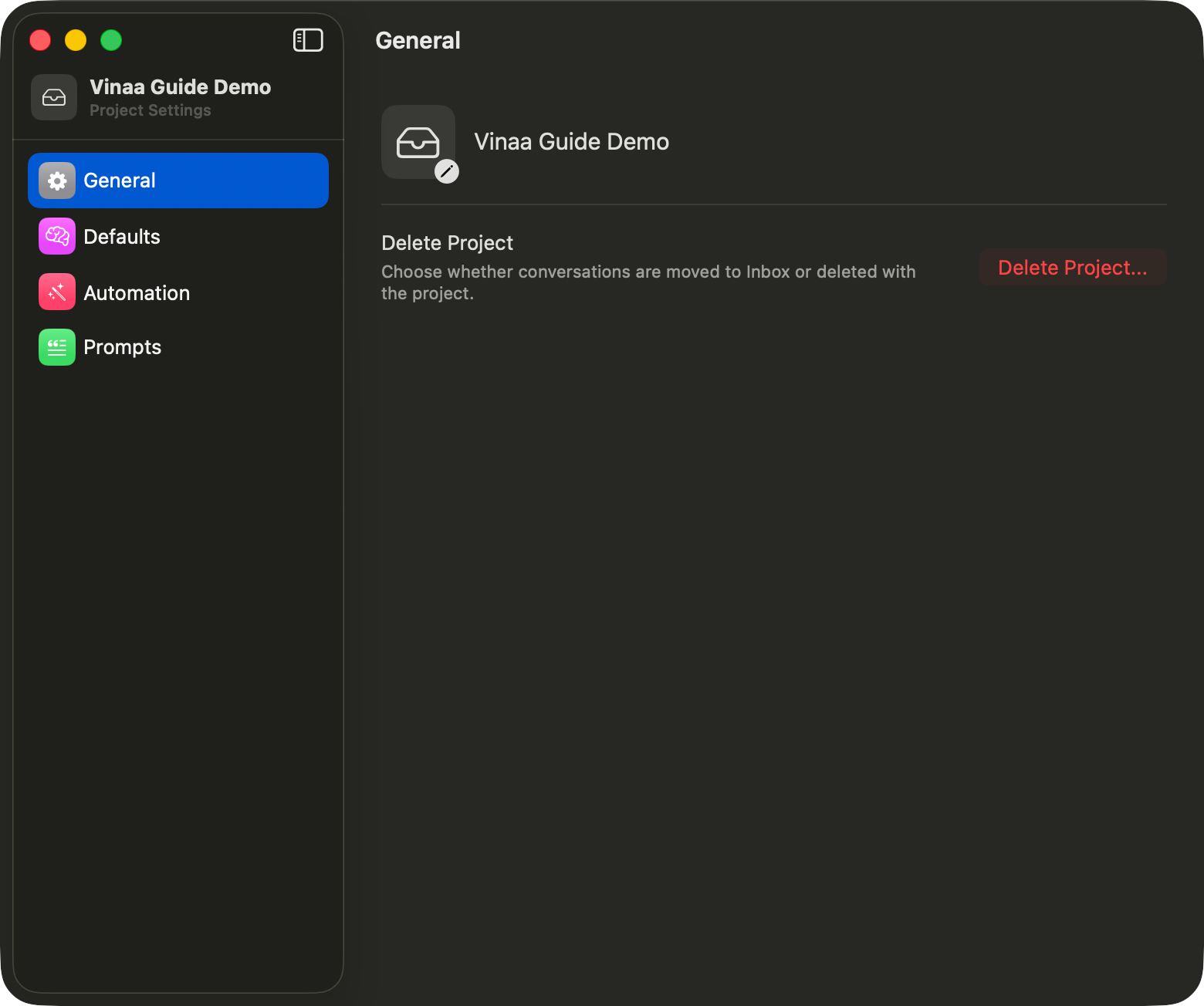
Project Settings contains:
General: Project name, icon, color, and deletion controls.
Defaults: Default chat model and chat instructions.
Automation: Model and prompts used for titles and folder assignment.
Prompts: Reusable prompts available in this project.
Create a folder
Select the project.
Choose File → New Folder.
Enter a folder name.
Click Create.
To create a subfolder, right-click an existing folder and choose New Subfolder.
Automatically assign conversations to folders
Vinaa can use AI to place new conversations in the most suitable existing folder.
Create the folders you want Vinaa to use.
Open Project Settings and select Automation.
Under Default Model, choose the model used for title generation and folder assignment, or keep the app default.
Set Auto-Assign Folder to On. Choose Inherit if you want the project to follow the app-wide setting.
Review the Folder Assignment Prompt. You can change it to give the AI more specific instructions.
The list of folders in the project is included automatically. Vinaa uses the conversation and your instructions to choose the best match.
Auto-Assign Folder can only choose an existing folder. It cannot create a new folder. Create the folders you need before enabling the automation.
Rename or move a folder
Right-click the folder and choose Rename or Move Folder to.
Delete a project or folder carefully
Project Settings explains what will happen to the project's conversations before deletion. Folder deletion can also offer a separate action to delete the conversations inside it.
Review the confirmation screen before deleting. If iCloud sync is enabled, deletions also sync to your other Macs.
Was this helpful?
Still need help? Ask the team