Take a tour of the Vinaa workspace
Learn where to find projects, conversations, Chat Input, search, attachments, and navigation controls.
Written By Sujeevan Nagarajah
Last updated 3 months ago
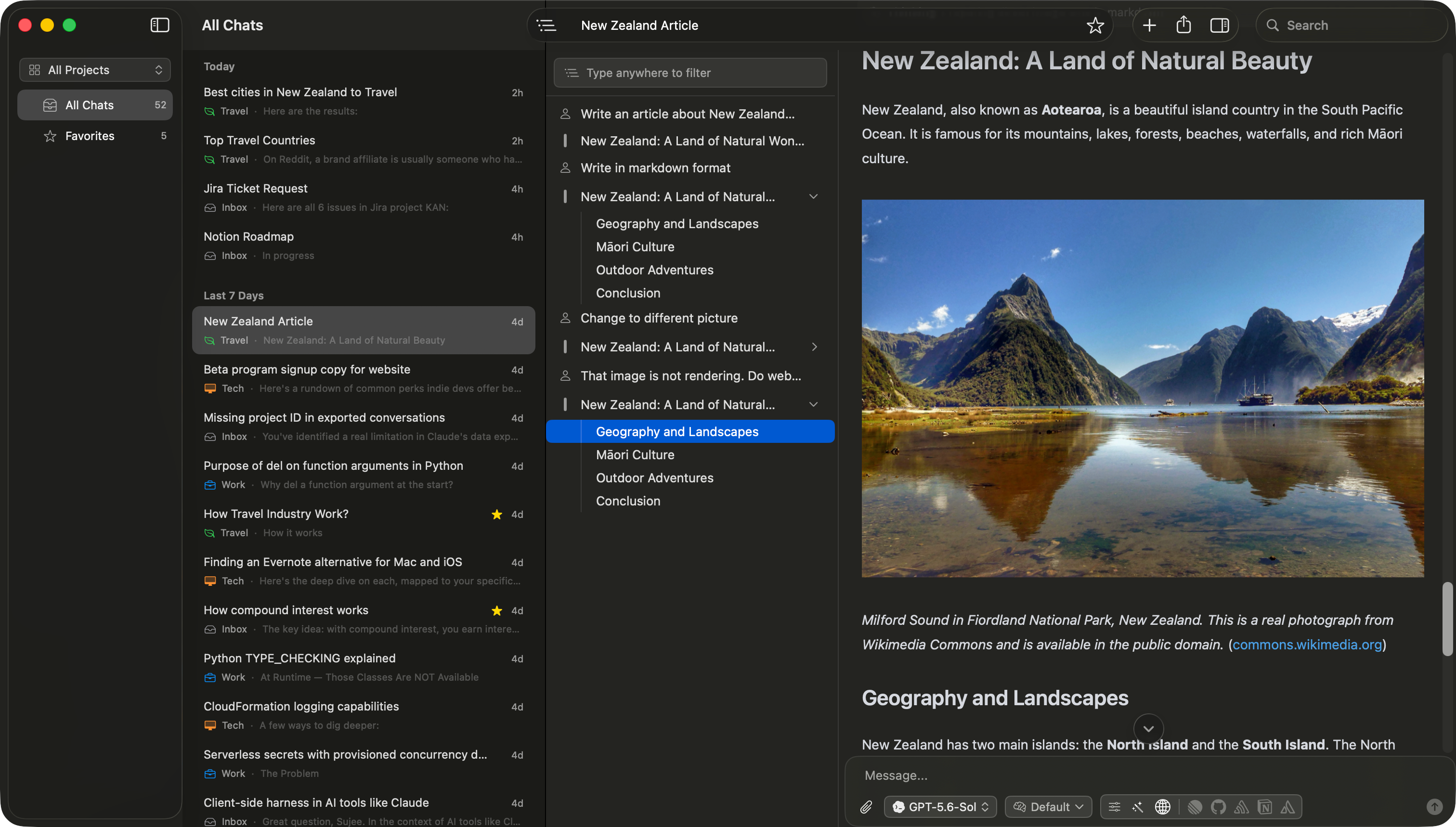
Vinaa uses a native Mac layout that keeps your conversations and current chat visible together.
Project Panel
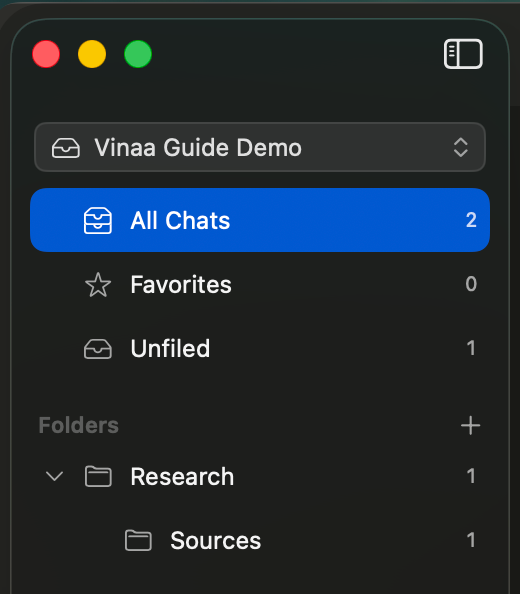
The left column is the Project Panel. Use it to:
Change the current project.
Show all chats in the project.
Open Favorites or Unfiled chats.
Browse folders and subfolders.
Use Command-Shift-F to show or hide this panel.
Chat List
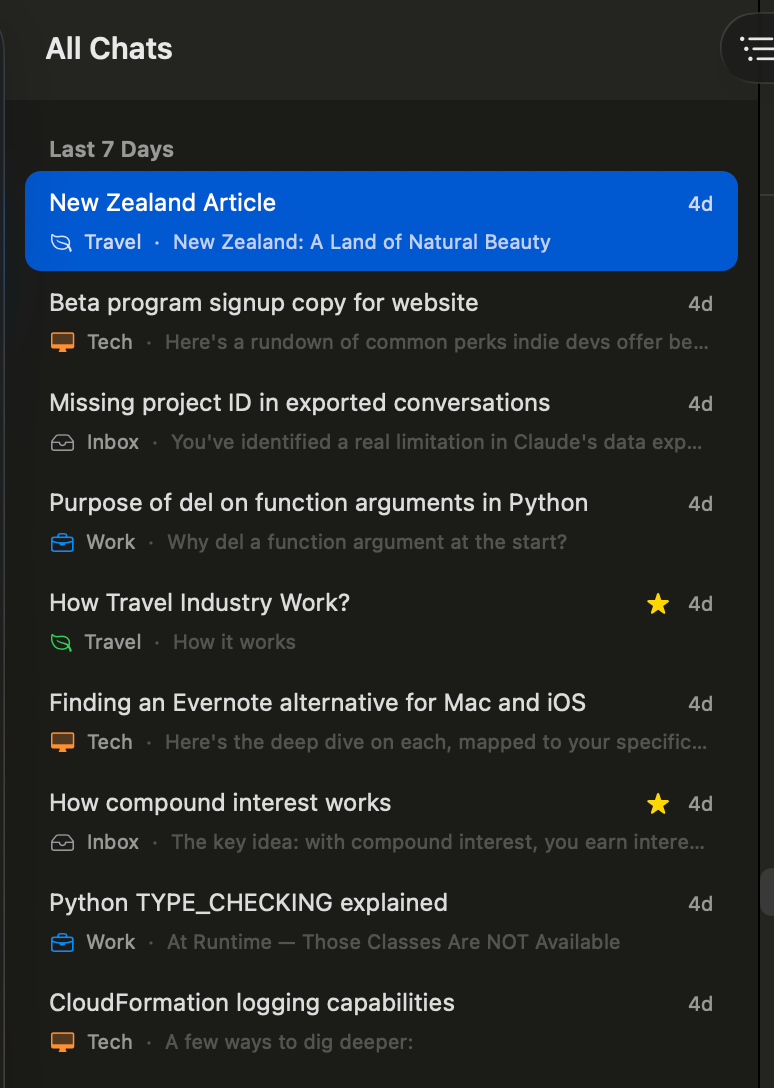
The middle column is the Chat List. It shows conversations in the selected scope and groups them by date.
Each row can show the conversation title, time, project or folder, favorite status, and a short preview. Use the search field in the toolbar to filter this list.
Chat Detail
The large area on the right is Chat Detail. It contains the message thread and Chat Input.

The toolbar can include controls for:
Content Navigation.
Conversation title.
Favorites.
New Chat.
Share and export.
Toggle attachments panel
Search

Chat Input
Use the controls below the message field to select a model, adjust reasoning, configure tools, attach files, and send or stop a response.

Content Navigation
For a long conversation, press Command-Shift-J to open Content Navigation. It lists prompts, responses, and headings so you can jump to a section quickly.
Resize the workspace
Drag the dividers between columns to give the active area more room. Vinaa remembers your window layout.
Was this helpful?
Still need help? Ask the team