Start your first chat
Choose a model, send a message, and continue your first conversation in Vinaa.
Written By Sujeevan Nagarajah
Last updated 29 days ago
After connecting an AI provider, you can start a chat in a project or folder. You also need an active trial or license to send messages.
Send your first message
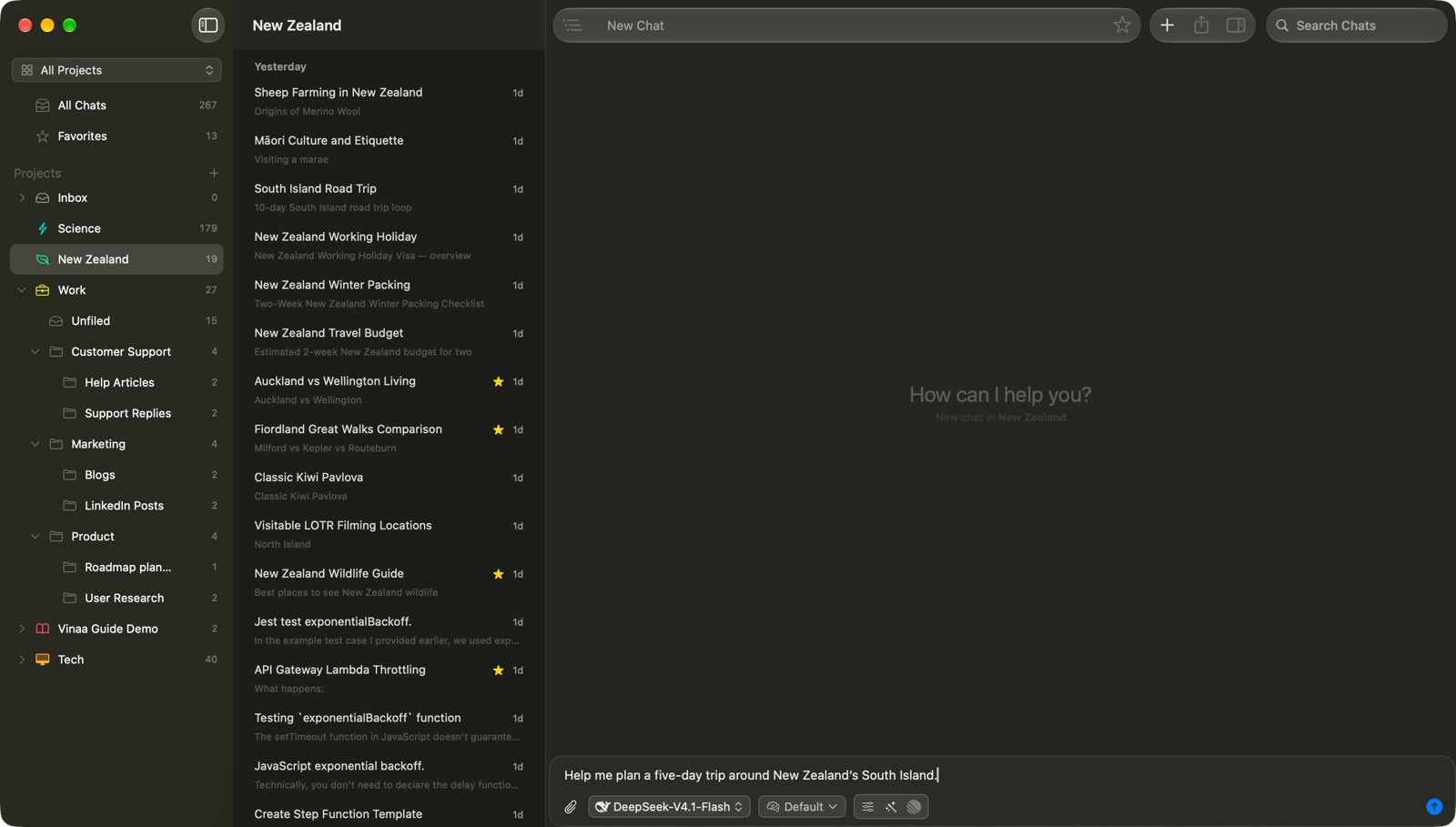
Select the project or folder where you want the chat to live, such as New Zealand.
Click New Chat in the toolbar or press ⌘N.
Click the model button below the message field, or press ⌘L.
Choose an available model—the AI that will answer your messages.
Enter your request in Chat Input, such as “Help me plan a five-day trip around New Zealand's South Island.”
Press Return to send it.
Vinaa creates the conversation when you send the first message. The reply appears as the AI writes it. When you create a chat from a view spanning projects without a specific project selected, the new chat goes to Inbox.
Write on more than one line
Press ⇧Return to add a new line without sending. Use this to separate your request, requirements, and background information.
Read or stop a response
By default, Vinaa keeps your reading position while the response is being written. Hover over the floating response control to see its label:
Follow Response scrolls with the reply as it grows.
Stop Following lets you stay at your current reading position.
Scroll to End takes you to the bottom after generation finishes.
To follow replies automatically, enable Follow responses while streaming in Vinaa → Settings → Appearance.
To stop generation, click the stop button in Chat Input or press Escape while Chat Input is focused. You can then send a follow-up or regenerate the latest response.
Continue or try the latest response again
Type another message and press Return to continue the conversation. Use ⌘L to change models for future responses; existing messages stay as they are.
To retry the latest response:
Click Regenerate response in its message toolbar.
Adjust the original request in Chat Input if needed.
Press Return to generate the replacement response.
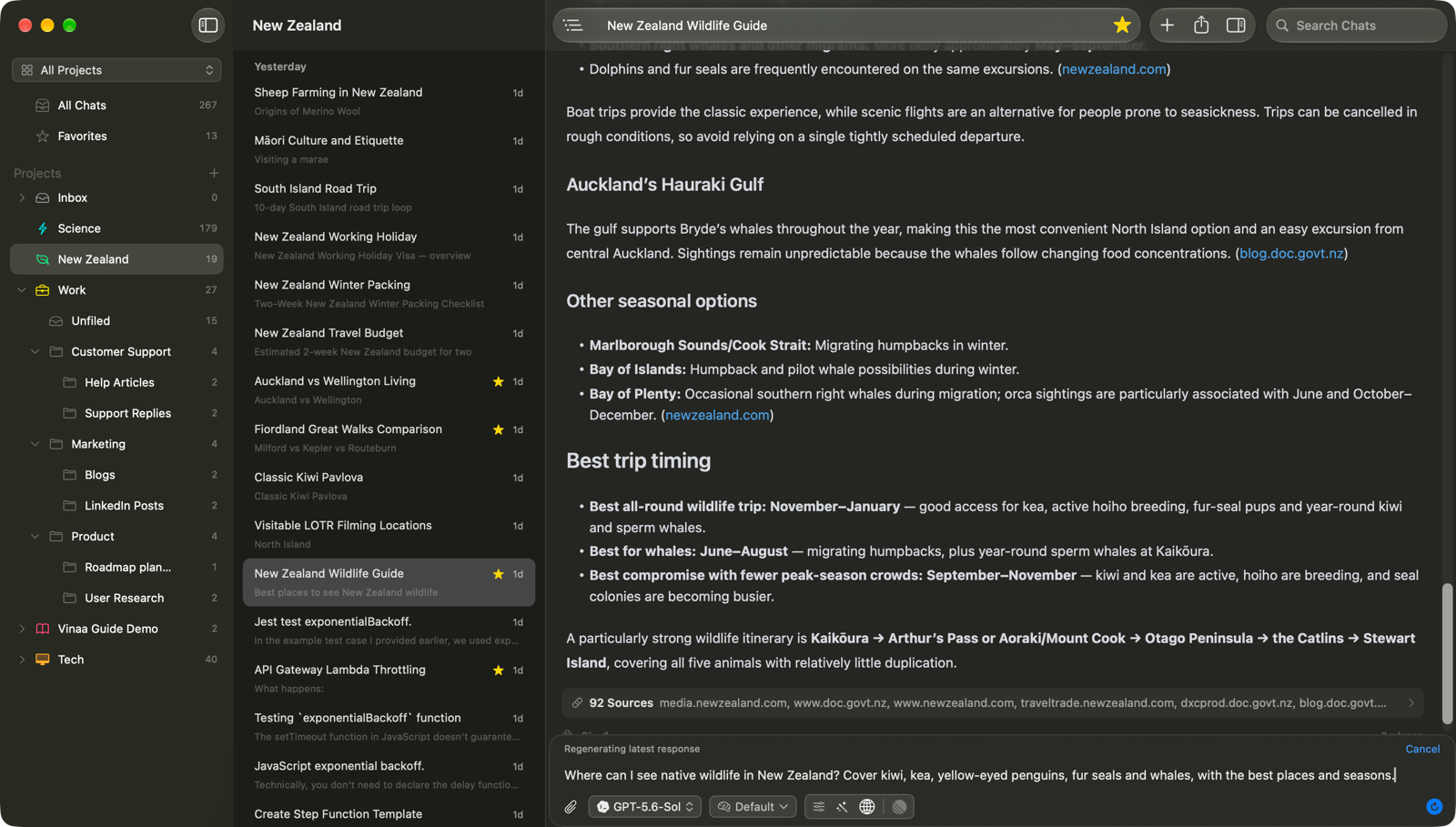
You can also change the model before resending. Cancel leaves regeneration mode. Regeneration is available only for the latest response; older messages cannot be edited.
Bring an existing conversation
When you have no conversations yet, the first-conversation screen offers Import from ChatGPT or Claude. Click it to open the import wizard. If the button is not visible, choose File → Import... (⇧⌘I).
You can add files to supported models, choose tools with ⇧⌘T, and use the toolbar star to favorite a chat when you're ready.
Related articles
Connect an AI provider
Choose a model for a chat
Attach files to a message
Import chats from ChatGPT or Claude
Was this helpful?
Still need help? Ask the team