Use AI tools
Enable web, code, and MCP tools for a conversation and follow their activity in the chat.
Written By Sujeevan Nagarajah
Last updated 3 months ago
Tools let a supported AI model do more than answer from its existing knowledge. Depending on the model and connection, it may search the web, fetch a page, run code, or use a connected MCP service.
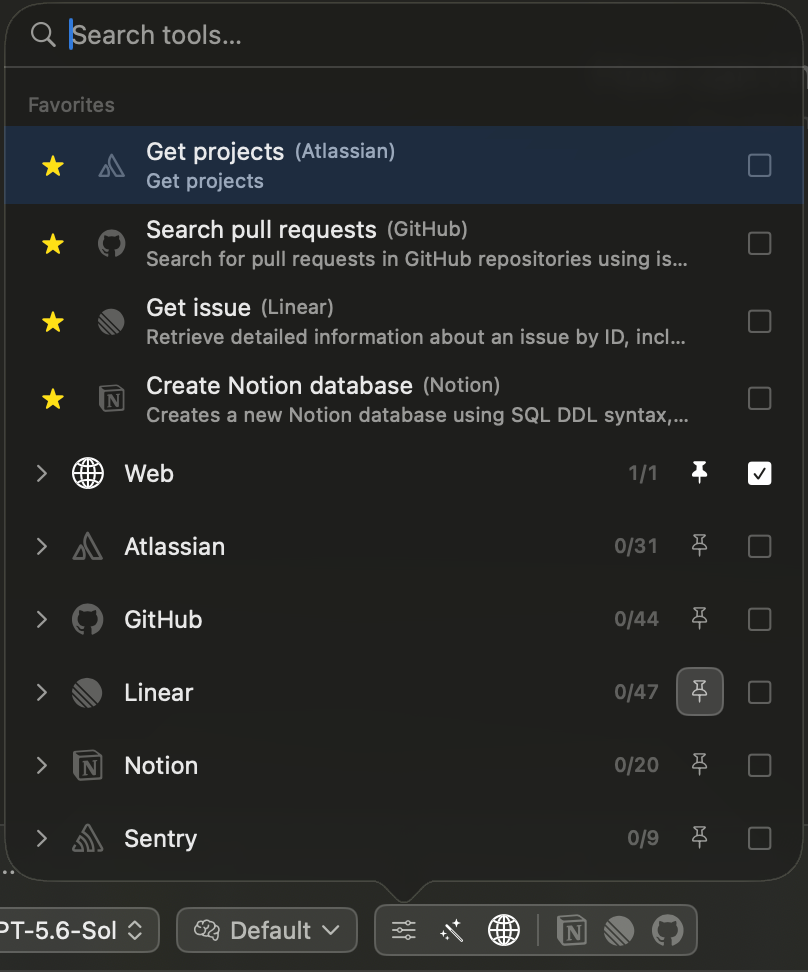
Open the tool panel
Click the tool settings button in Chat Input, or press Command-Shift-T.
Enable or disable tools
Search for a tool or tool group.
Select the tools the AI may use in this conversation.
Pin frequently used groups to the quick bar if needed.
Close the panel and send your request.
Quick-bar buttons let you turn pinned tool groups on or off without reopening the full panel.
Use Tool Finder
When the wand button is enabled, Tool Finder lets the AI find and add suitable tools as needed. Click the wand button to turn this behavior on or off for the conversation.
Follow tool activity
When the AI uses a tool, Vinaa adds a block to the conversation. The block can show:
Tool name and status.
A short description of the action.
Search queries or fetched pages.
Code execution details.
Results returned by an MCP service.
Click a tool block to expand its details.
Tool availability
The tools you see depend on the selected model, provider, and configured MCP servers. Some providers include built-in web or code tools. MCP tools appear only after the server has been added and is ready.
A tool enabled in one conversation is not automatically enabled in every other conversation.
Was this helpful?
Still need help? Ask the team