Choose a model for a chat
Search available models, view their capabilities, and select the right model for a conversation.
Written By Sujeevan Nagarajah
Last updated 3 months ago
Each Vinaa conversation has its own selected AI model. You can choose a model before the first message or change it later.
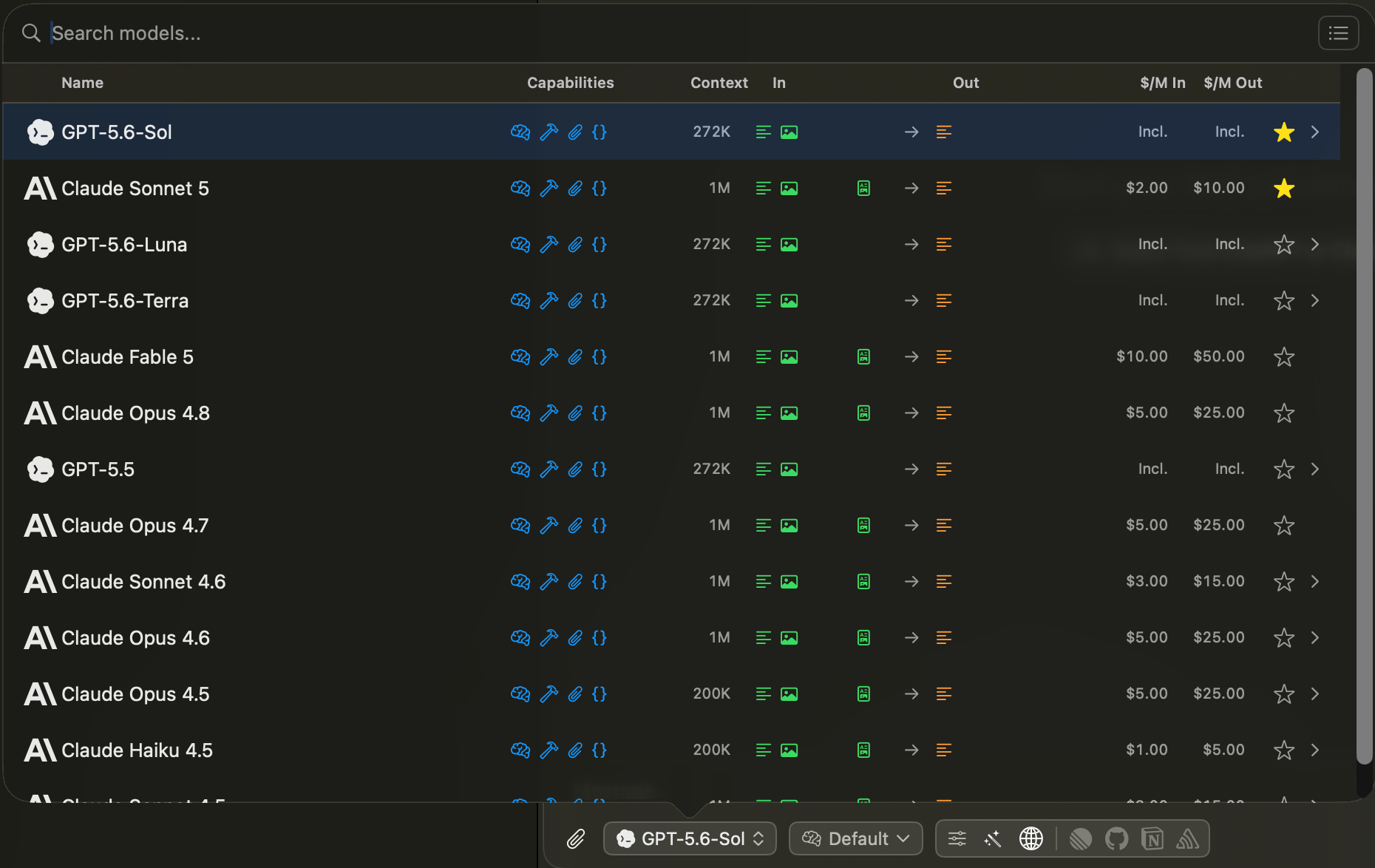
Open the model picker
Click the model button in Chat Input, or press Command-L.
Choose a model
Enter part of a model or provider name in Search models.
Review the matching models.
Click the model you want to use.
Switch between simple and detailed modes
The model selector has two display modes. Click the view button in the top-right corner to switch between them.
Simple mode shows each model's name and a short description. Use this mode when you already know which model you want.
Detailed mode compares models in a table. It can show capabilities, context-window size, supported input and output types, and input and output pricing.
Not every provider supplies every detail. A blank value does not always mean the model lacks that feature.
Filter the model list
Type / in Search models to open model filters.
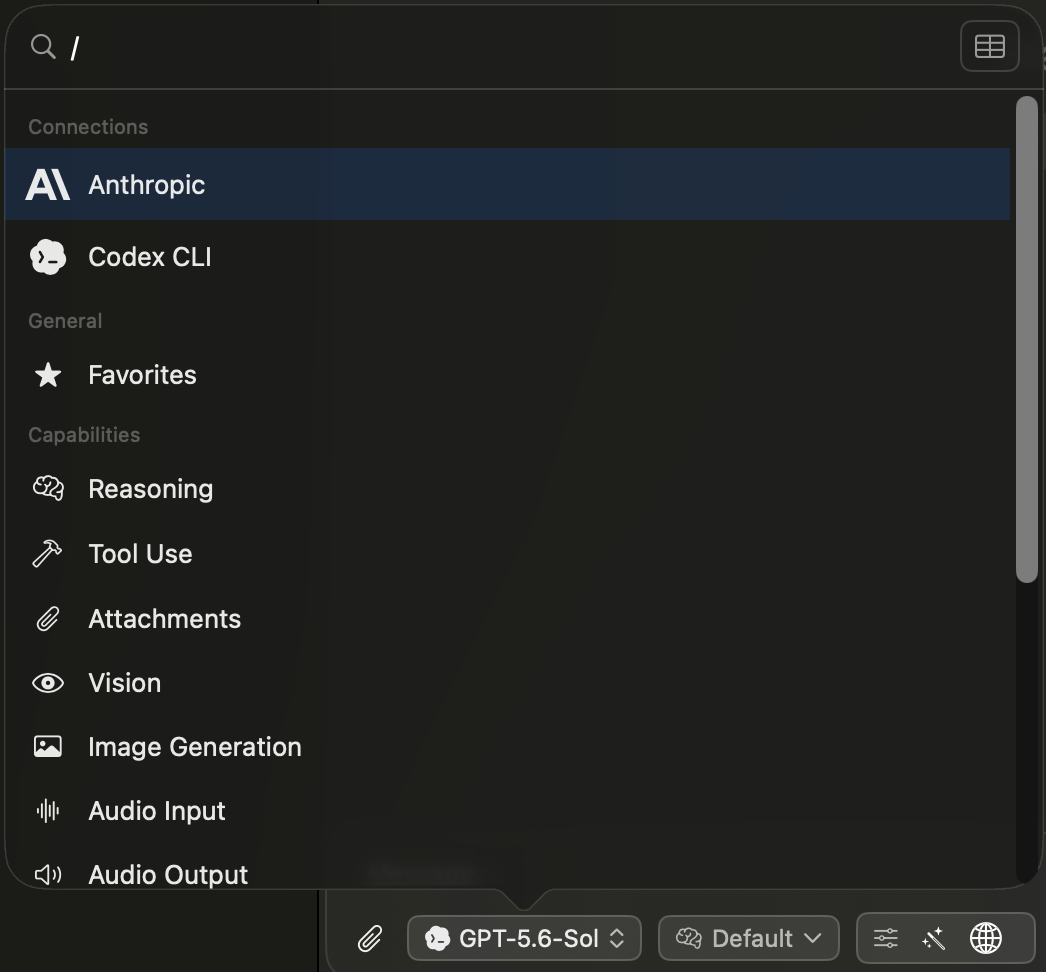
You can filter by:
Connection, such as Anthropic or Codex CLI.
Favorites.
Capabilities, such as reasoning, tools, attachments, or vision.
Context-window size.
Pricing range.
Select a filter to add it to the search field. You can combine filters, then enter normal search text to narrow the results further. Remove the last filter with Delete when the search field is empty.
Favorite a model
Click the star beside a model to add or remove it from your favorites. Favorite models are easier to find and may be used as a fallback when no app or project default is set.
Choose a reasoning effort
For models with configurable reasoning, click the > arrow beside the model. Choose Default or another supported reasoning effort, such as Low, Medium, High, or Max.
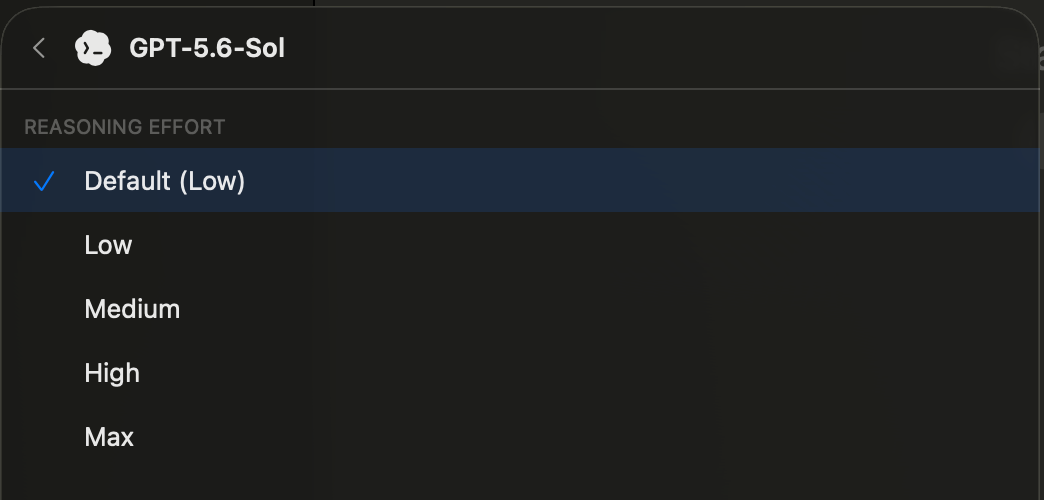
Default uses the model's normal reasoning level. Higher reasoning can help with more difficult requests, but it may take longer and use more tokens. The available levels depend on the model.
Understand model defaults
Vinaa can choose a model from several levels:
The model selected for the conversation.
The project default model.
The app default model.
A favorite or other available model.
Changing models can change response style, speed, available tools, attachment support, and provider cost.
Was this helpful?
Still need help? Ask the team