Attach files to a message
Add files to a message, reuse earlier attachments, and preview or save files from a chat.
Written By Sujeevan Nagarajah
Last updated 29 days ago
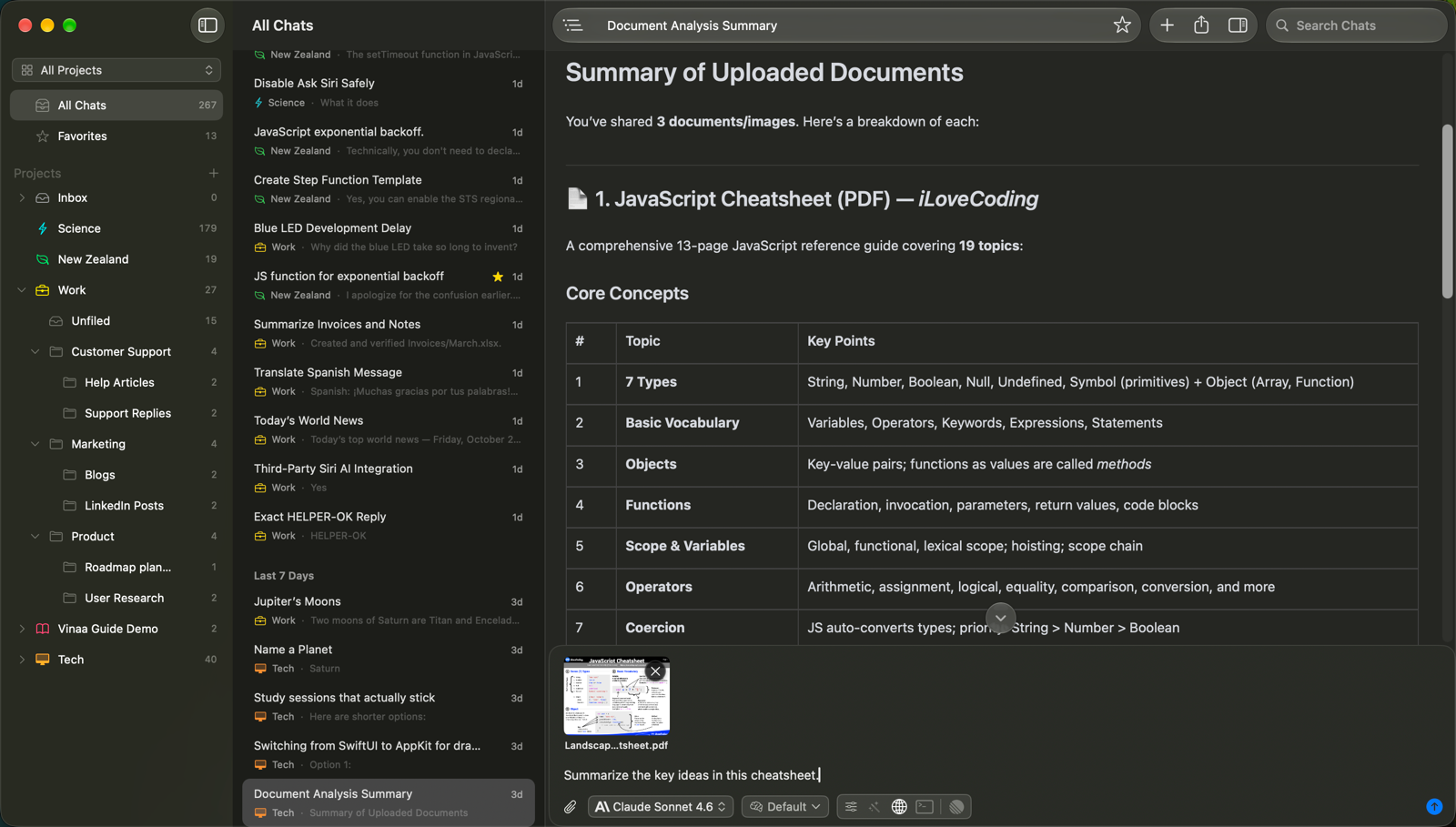
Send a file with your request when you want the AI to work with its contents. The selected model must support the type of file you attach.
Add a new file
Click the paperclip in Chat Input.
Choose Choose File....
Select a supported file in the file chooser.
Enter what you want the AI to do with the file.
Press Return to send the message.
You can also drag a file onto Chat Input or paste a supported file from the clipboard. Before sending, the file appears above the message field. Use its remove control if you chose the wrong file.
Reuse an earlier attachment
Choose Chat → Browse Attachments..., or press ⇧⌘A.
Search or browse the available attachments.
Select the files you want to use.
Click Add Selected, which also shows the number selected.
Enter your request in Chat Input.
Press Return to send it.
The attachment browser includes files from the current conversation and other conversations. Use its grid or list view to find what you need.
Preview or save a chat's files
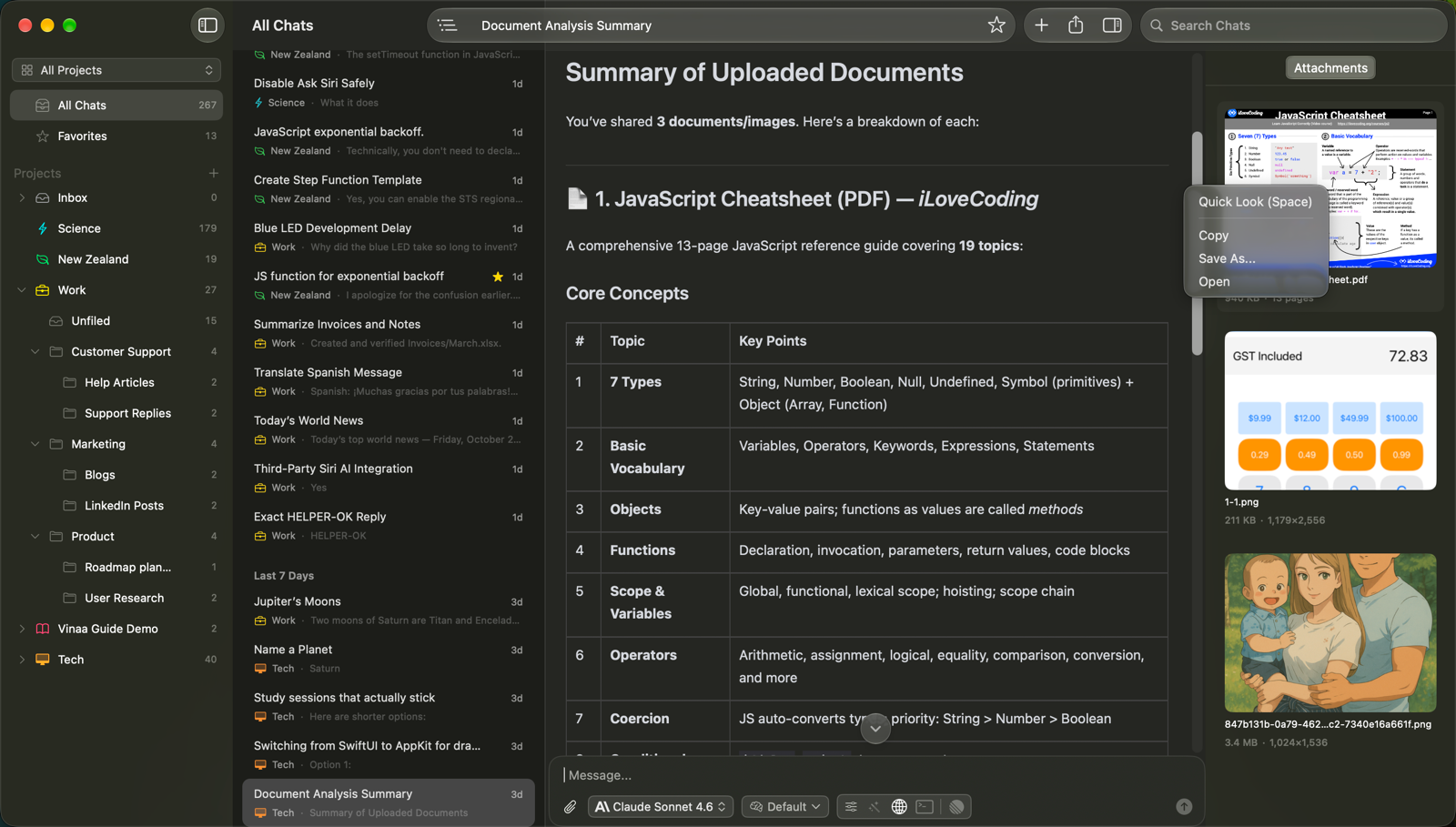
Press ⇧⌘R, or choose View → Toggle Attachments Panel, to show the chat's attachments.
Right-click a file for these actions:
Quick Look (Space): preview the file without opening another app.
Open: open it in its associated app.
Save As...: save a copy to a location you choose.
Copy: copy the file.
You can also select a file and press Space for Quick Look. Files returned by supported code-execution tools are saved as attachments too, so you can preview or save them here.
Supported files and limits
Supported types include JPEG, PNG, WebP and GIF images; PDFs; plain text and Markdown; JSON, XML, YAML, TOML and CSV; and common source-code, script and configuration files.
Vinaa checks file size, total attachment size and image count before sending. It also checks whether the model accepts images or PDFs. If an attachment is rejected, read the message for the relevant limit, then use a smaller file or choose a model that supports that input. Changing models can change which attachments you can send.
Related articles
Choose a model for a chat
Use AI tools
Export or share a chat
Was this helpful?
Still need help? Ask the team