Use your ChatGPT plan in Vinaa
Install Codex CLI, sign in with ChatGPT and let Vinaa use the sign-in stored on your Mac.
Written By Sujeevan Nagarajah
Last updated 22 days ago
The ChatGPT Plan connection uses your ChatGPT account's Codex access rather than an OpenAI API key. Codex CLI is OpenAI's Terminal app; Vinaa reads its saved sign-in to connect.
Before you begin
Check OpenAI's current plan access and limits. OpenAI lists Free, Go, Plus, Pro, Business, Edu and Enterprise plans, but access and allowances vary. Workspace controls may also affect availability. This connection uses your Codex allowance, not unlimited ChatGPT messages.
Vinaa's integration isn't officially endorsed or supported by OpenAI and may stop working if OpenAI changes the service. Read the warning in Vinaa before accepting it.
Install Codex CLI and sign in
If Codex CLI is already installed, start at step 3.
Open Terminal on your Mac.
Paste
curl -fsSL https://chatgpt.com/codex/install.sh | shand press Return.Run
codex login.Complete the browser sign-in with the ChatGPT account you want to use.
The installer comes from OpenAI's Codex CLI guide. If Terminal reports that codex wasn't found, follow any setup instructions printed by the installer and open a new Terminal window before trying again. Use ChatGPT sign-in rather than API-key authentication; see OpenAI's authentication guide.
Connect Vinaa
Open Vinaa → Settings… (⌘,).
Select AI Models.
Click Add Connection in the toolbar.
Select ChatGPT Plan under Use Your ChatGPT or Claude Plan.
Read the warning.
If you agree, select I understand and accept these terms.
Click Grant Access to ~/.codex.
Select the
.codexfolder in your home folder in the file dialog.Confirm the folder selection.
The path ~/.codex means the hidden .codex folder inside your Mac user folder. Vinaa opens the dialog at this location and shows hidden folders. Select the folder itself, rather than a file inside it.
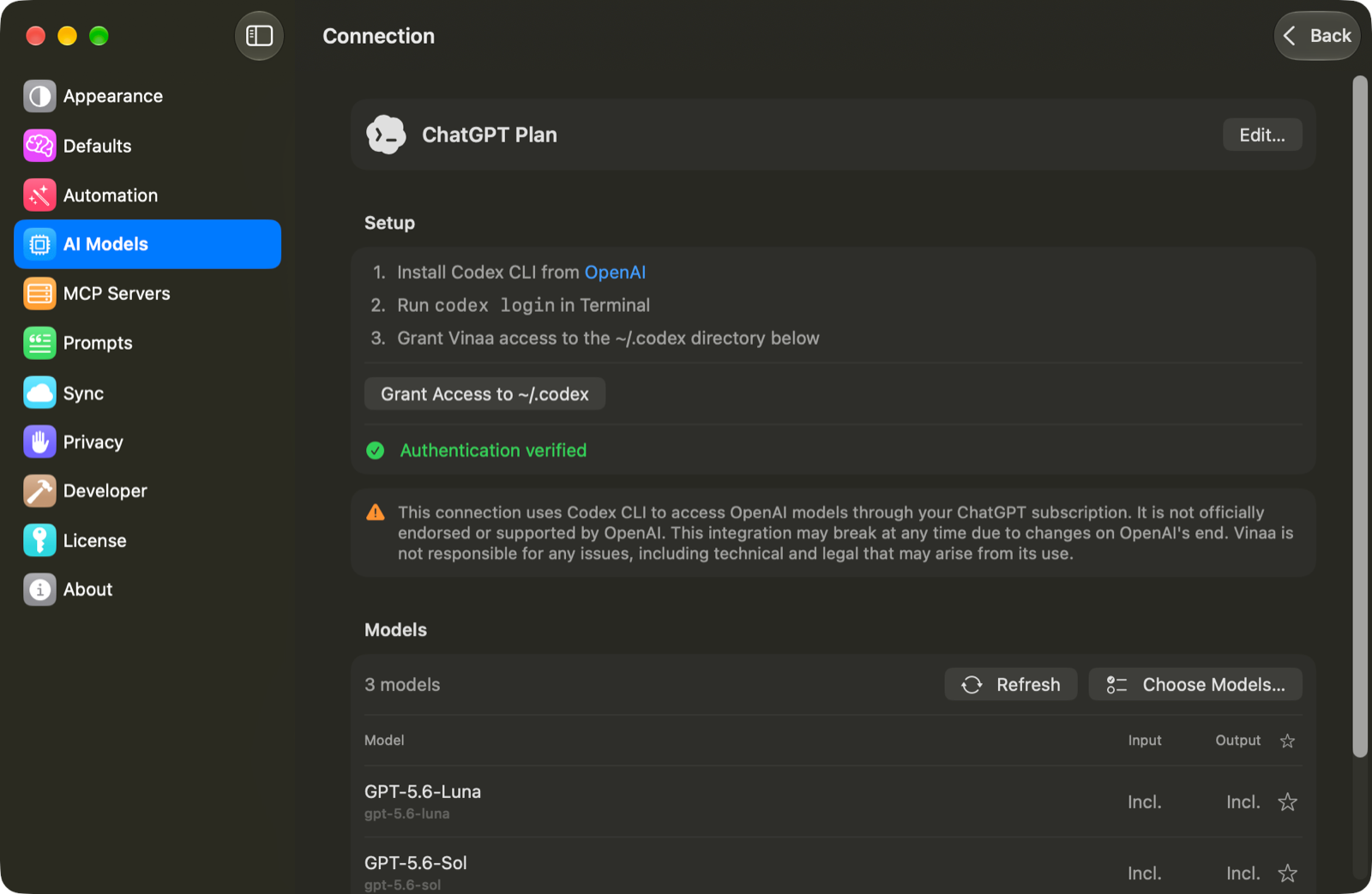
Once Vinaa shows Authentication verified:
Keep or change the Name.
Click Continue.
Select the models you want in Choose Models.
Click Add Connection.
Press ⌘L in a chat to choose one of these models. ChatGPT Plan is offered only once; if it's missing from the provider list, open the existing connection in AI Models.
If sign-in isn't recognized
Folder access required: click Grant Access to ~/.codex and select the folder.
Not logged in — run
codex loginin Terminal first: sign in, then grant folder access again to recheck.Session expired — run
codex loginto re-authenticate: repeat the sign-in, then return to the connection's setup.
Vinaa needs credentials in ~/.codex/auth.json. Codex can also store credentials in Keychain, which this Vinaa connection doesn't read. If Codex is signed in but Vinaa still can't find the session, follow OpenAI's credential storage instructions to use file storage, then sign in again. Treat auth.json like a password; don't share its contents.
On another Mac, install Codex CLI, sign in and grant folder access there too, even if the connection has synced through iCloud.
Related articles
Which AI connection should I use?
Get an OpenAI API key
Choose a model for a chat
Fix AI connection problems
Was this helpful?
Still need help? Ask the team