Import chats from ChatGPT or Claude
Bring an official ChatGPT or Claude data export into a new Vinaa project and continue its conversations.
Written By Sujeevan Nagarajah
Last updated 22 days ago
Vinaa imports chats from downloaded exports. Before importing, connect at least one AI model in Vinaa so you can choose which model will answer future messages in those chats.
Get your ChatGPT export
Sign in to ChatGPT on the web.
Open your profile menu.
Choose Settings.
Select Data controls.
Click Export under Export data.
Select Confirm export.
Download the ZIP using the link sent when your export is ready.
OpenAI says exports can take up to seven days, and the download link expires after 24 hours. Keep the whole ZIP for Vinaa, including its media files. For current availability and help, see OpenAI's export instructions.
Get your Claude export
Open Claude on the web or in Claude Desktop.
Open Settings → Privacy.
Click Export data.
Follow the export email's instructions to obtain your export.
Stay signed in to Claude when downloading. Its download link expires after 24 hours. See Claude's export instructions if the option is missing or the link expires.
If the email gives you a manifest file, save that file. A manifest is a small list of download links; Vinaa can use it to guide you through downloading the conversation files. You can also import a ZIP you have already downloaded.
Choose your export in Vinaa
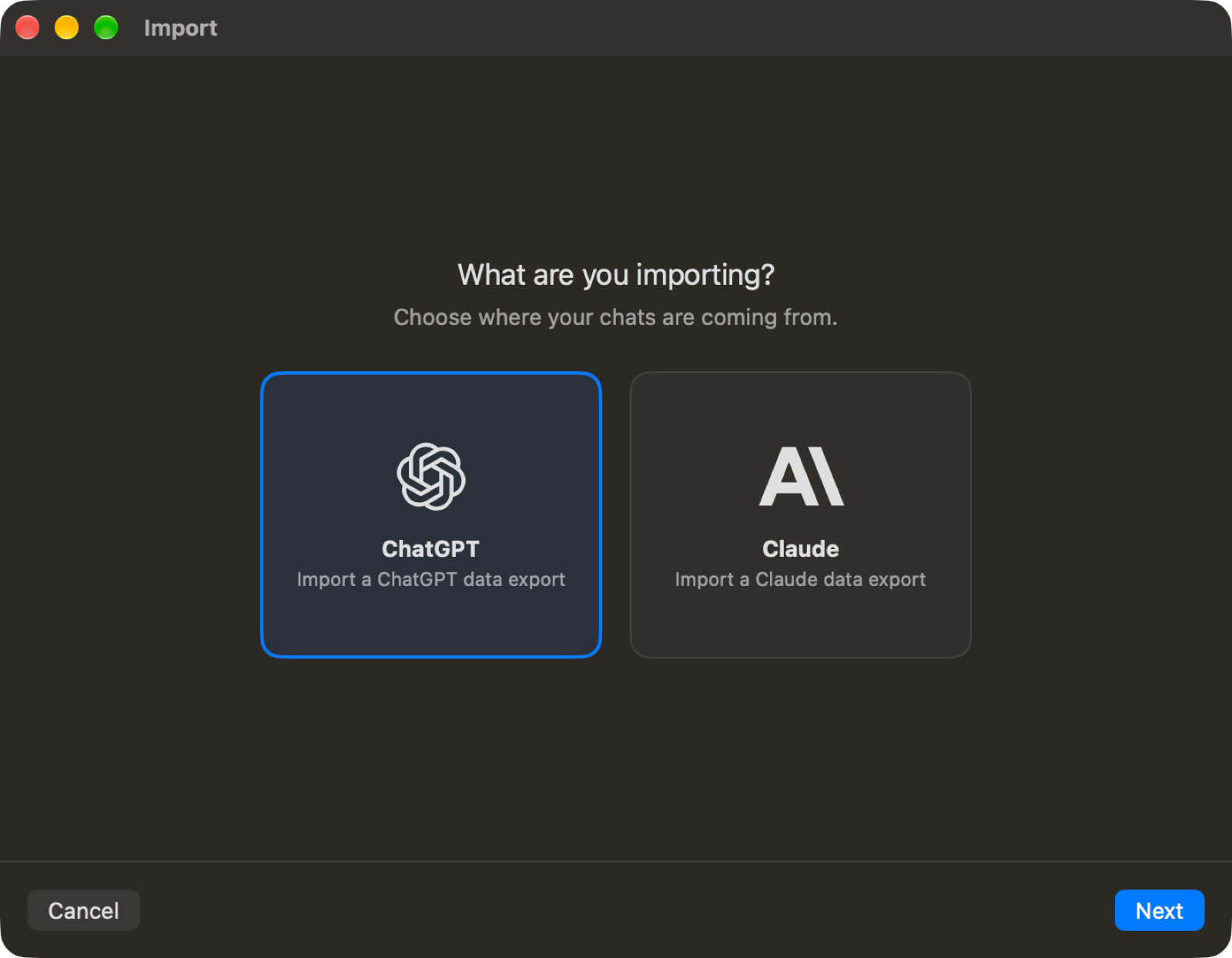
Choose File → Import..., or press ⇧⌘I.
Select ChatGPT or Claude under What are you importing?.
Click Next.
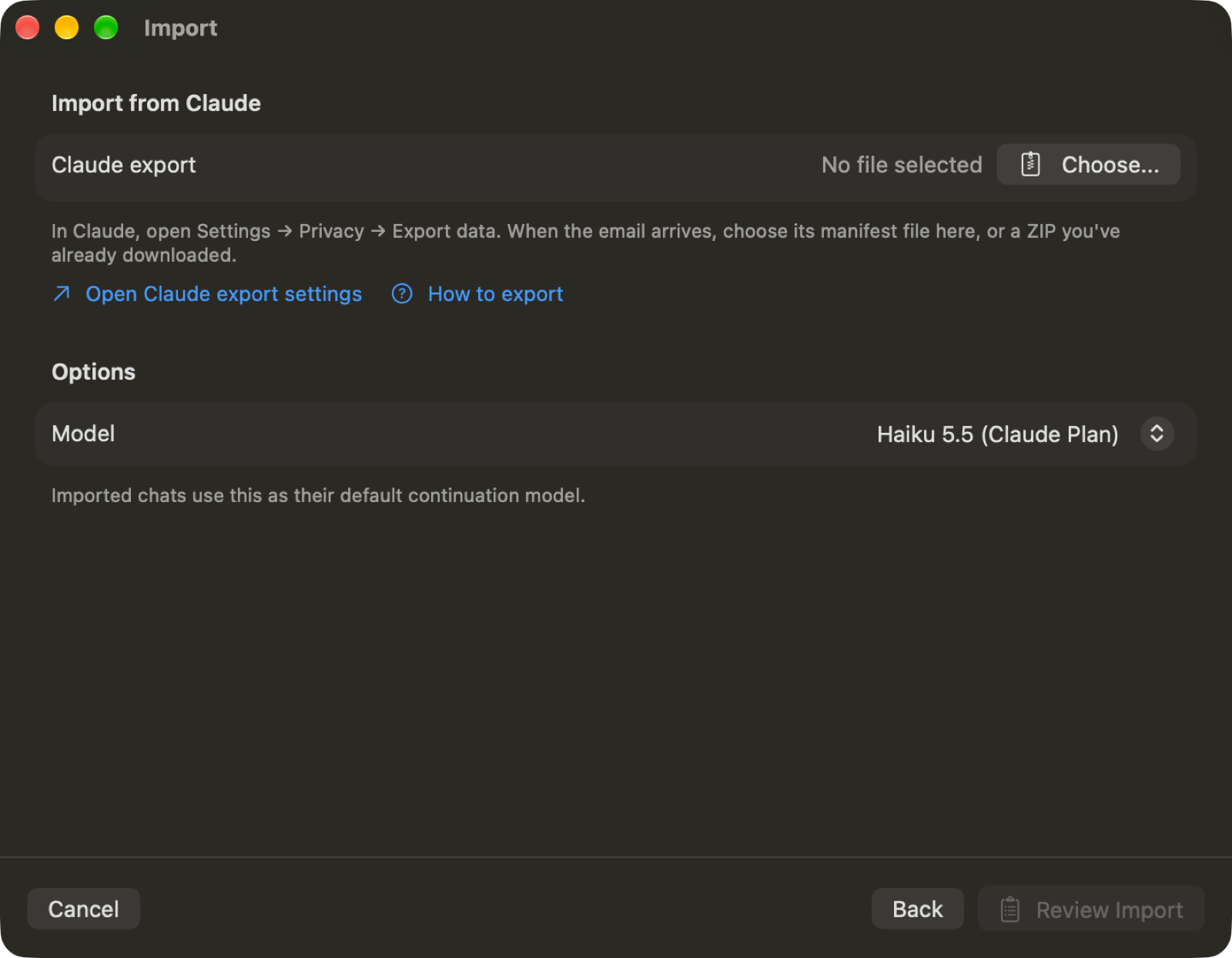
Click Choose....
Select the export ZIP, its extracted folder, or a Claude manifest file.
If you selected a Claude manifest:
Click Download in Browser.
Complete the downloads in your browser.
Return to Vinaa.
Click Choose Downloaded File….
Select the downloaded conversation ZIP files, including every part if there is more than one.
If Vinaa says the manifest links have expired, request a fresh export in Claude or choose a ZIP you downloaded earlier.
Review and import
Choose a Model under Options for future replies.
Click Review Import.
Read the chat count, Continuation model, and any import notes.
Click Start Import.
Wait for Import complete.
Click Show Project.
If no model is available, click Configure AI Models... and set up a connection before continuing.
Vinaa creates a dated project named Imported from ChatGPT — … or Imported from Claude — …. Open an imported chat and send a message to continue with the model you selected. Imported messages remain unchanged. Use Import Another... on the result screen to start another import.
Understand import limits
ChatGPT images and uploads are imported when their referenced files are present in the export.
Claude exports do not include original images or uploaded files. Vinaa imports included text attachments.
Claude exports do not identify which chats belong to which projects, so Vinaa puts them in one new project.
Some historical tools and ChatGPT Canvas documents become read-only cards.
Review notes explain other omissions, such as skipped empty chats or citation links that could not be mapped.
Related articles
Connect an AI provider
Choose a model for a chat
Understand projects and folders
Export or share a chat
Was this helpful?
Still need help? Ask the team