Privacy, crash reports and analytics
Choose whether to share crash reports and usage analytics, and understand where your chat data goes.
Written By Sujeevan Nagarajah
Last updated 22 days ago
Vinaa stores chats and files on your Mac by default. Using cloud AI, external tools or iCloud sends the data needed for those features to the services you choose.
Choose what to share
Choose Vinaa → Settings..., or press ⌘,.
Select Privacy.
Set Share Crash Reports & Diagnostics to your preference.
Set Share Product Analytics to your preference.
Both options are off by default, and you can change them independently.
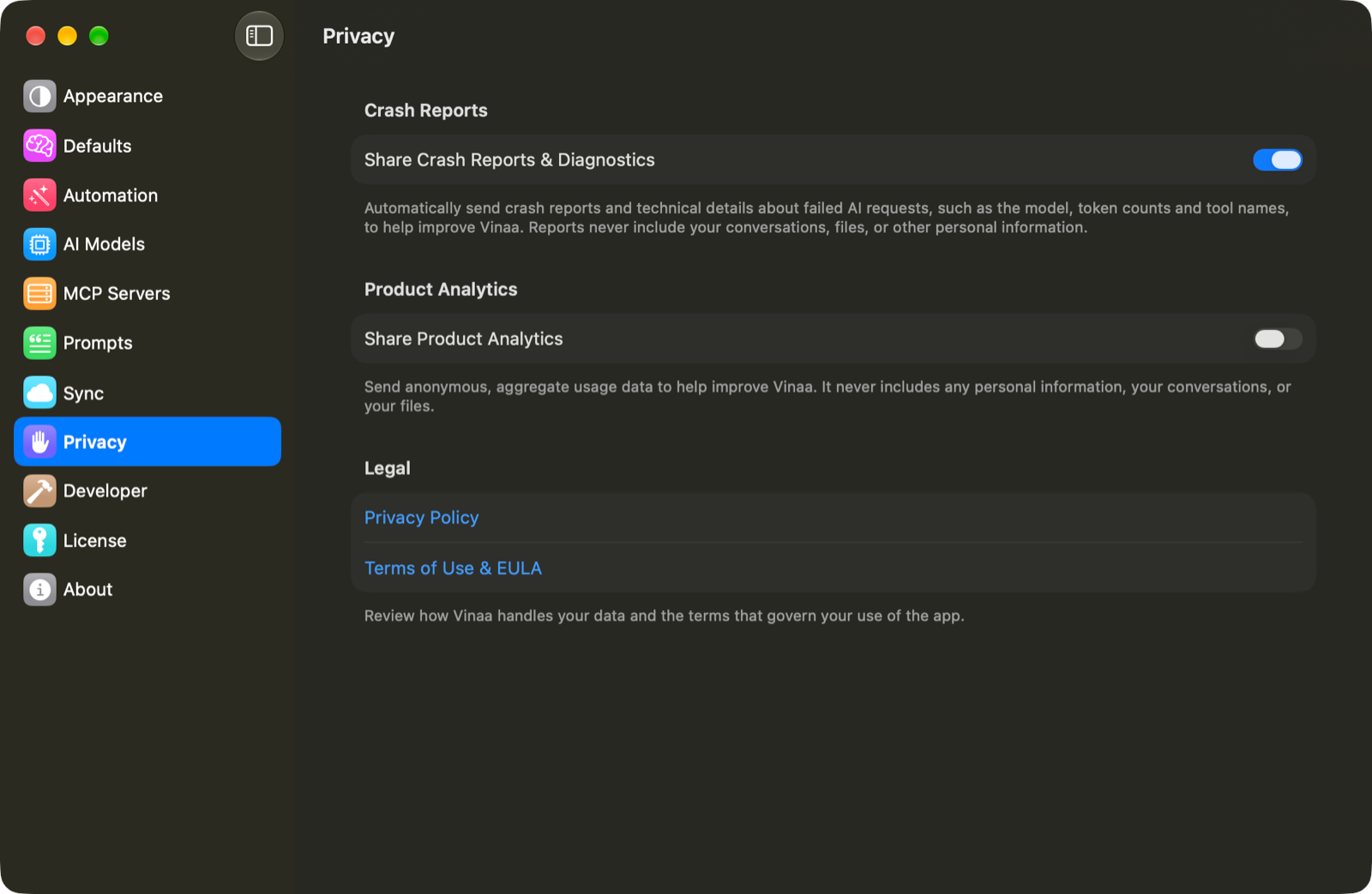
Crash reports and diagnostics
Share Crash Reports & Diagnostics enables automatic crash reporting and technical reports about failed AI requests. These can describe the app and macOS version, errors, the model used, timings, token counts and tool names. Token counts measure how much text an AI request processes.
The diagnostic records do not attach chat history, files, or tool inputs and results. They help identify failures without sending the conversation itself.
A report you send manually is separate from automatic reporting. It includes the description you write, an email address if you provide one, and optional recent logs. Reports opened from an error card also include its error message. Review Details that will be sent before sending.
Product analytics
Share Product Analytics enables limited usage measurements, such as app activity and conversation creation. Analytics uses a random identifier and is not linked by Vinaa to you. Message text and file contents are not part of these events.
Chats, credentials and connected services
API keys are stored using macOS Keychain. With iCloud sync enabled, supported credentials can sync through iCloud Keychain; supported app data syncs through your private iCloud account.
When you send a request, relevant messages, attachments and tool data go directly to your selected provider or service. Their privacy rules apply. Vinaa does not use your conversations or files to train AI models. See the Privacy Policy for the full details.
Extra logs for support
If Vinaa support asks for extra logs, open Vinaa → Settings... → Developer and turn on Send Debug Logs. This is separate from the Privacy toggles. It turns off automatically after three days; you can turn it off sooner.
Related articles
Report a problem
Sync with iCloud and back up your data
Which AI connection should I use?
Was this helpful?
Still need help? Ask the team