Start your free trial or activate a license
Start a 14-day trial, activate a purchased key, or manage the Macs using your Vinaa license.
Written By Sujeevan Nagarajah
Last updated 22 days ago
A trial or license lets you send messages in Vinaa. Your AI connection is separate: activating Vinaa does not connect an AI provider or include that provider's usage charges.
Start your free trial
During first-time setup, click Start free trial on Unlock Vinaa. The trial lasts 14 days. Continuing past that step without an activated license starts the trial automatically.
If you have already finished setup and your status is Not activated:
Choose Vinaa → Settings (⌘,).
Select License.
Click Start free trial.
Connect to the internet so Vinaa can contact the license server. Status shows the remaining trial time and Trial ends shows its end date. Starting the trial again does not reset it.
Buy and activate a license
Click Buy Vinaa… in License settings to open the purchase page. Check Vinaa pricing for current options.
When you have your key:
Open Vinaa → Settings → License.
Paste your key into License key under Activate a license. It has the format
VINAA-XXXX-XXXX-XXXX-XXXX.Click Activate.
A successful activation changes the status to Licensed. If activation fails, read the message below the key field. Check that you pasted the complete key and that your Mac can reach the internet.
Manage your Macs
After activation, Devices shows your license's device allowance and, when available, how many slots are in use. This Mac identifies the current computer.
Click Add More Macs… to open your license on vinaa.ai, where you can see the Macs using it and purchase more slots.
To free this Mac's slot:
Click Deactivate this Mac in License settings.
Click Deactivate in the confirmation dialog.
Deactivation prevents sending messages here until you activate again. Your existing data stays on the Mac.
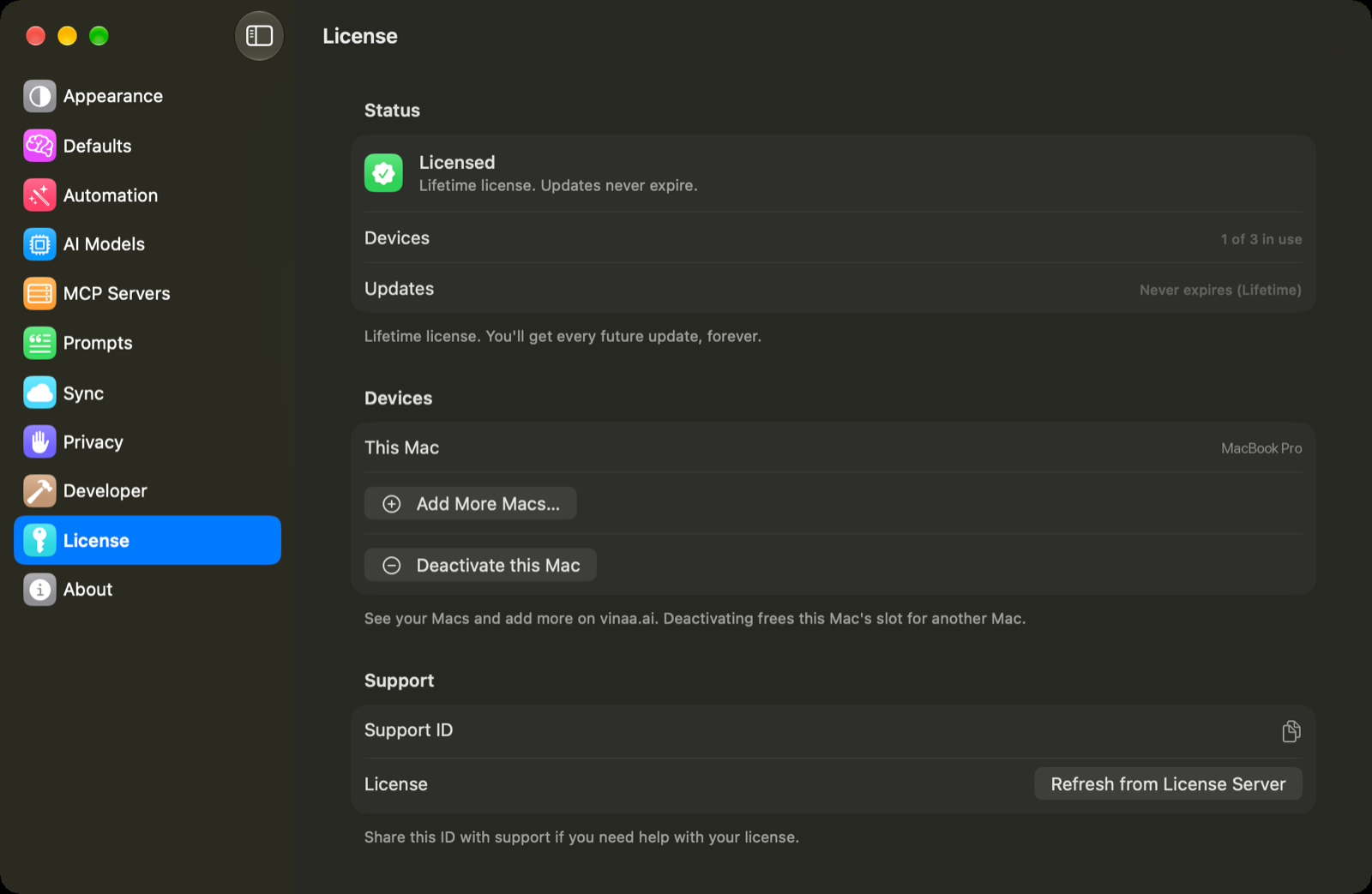
Understand your status
When access ends, existing chats remain available to browse and export; Chat Input is replaced with license options.
Renew updates when needed
If your license has an update end date, Renew updates… appears near that date and after it expires. Click it to open the renewal page. Expired update coverage does not stop a version your license already covers from working. Lifetime licenses have no update expiry and need no renewal.
Get help with a license
In License settings, click Copy beside Support ID to copy the full ID for support. You can email support@vinaa.ai if you need help.
For an activated key, Refresh from License Server retrieves its latest status, which can help after a license change.
Related articles
Set up Vinaa for the first time
Connect an AI provider
Start your first chat
Report a problem
Was this helpful?
Still need help? Ask the team