Use Apple's on-device model
Use Apple Foundation Models in Vinaa for private, offline AI on a supported Mac.
Written By Sujeevan Nagarajah
Last updated 22 days ago
Vinaa can use Apple's on-device AI model without an API key or an AI subscription. The model runs on your Mac, with no per-message AI charge.
Check what you need
Vinaa's Apple Foundation Models connection requires macOS 27 or later and a Mac that supports Apple Intelligence. It is not offered when adding connections on earlier macOS versions, even if other Apple Intelligence features work there.
Apple Intelligence must be enabled, and Apple's model must be ready on this Mac. Language and region can affect availability; check Apple's current requirements.
Set up the model
Choose Vinaa → Settings → AI Models.
Click Add Connection in the toolbar.
Choose Apple Foundation Models under On This Mac & Local Servers.
Check Status in On-Device Model.
If offered, click Open Siri Settings.
In System Settings → Siri, turn on Siri AI (Beta) by following Apple's onscreen setup.
Wait for approval and the model download to finish.
Return to Vinaa.
Click Check Again.
Apple's setup starts with Try Siri AI (Beta) in Siri settings. If Siri is off, turn it on first. See Apple's Siri AI setup guide for the current procedure and availability.
Add the connection
When Status shows Ready, click Continue.
Select Foundation Model (On-Device) in Choose Models.
Click Add Connection.
Press ⌘L in a chat to choose that model.
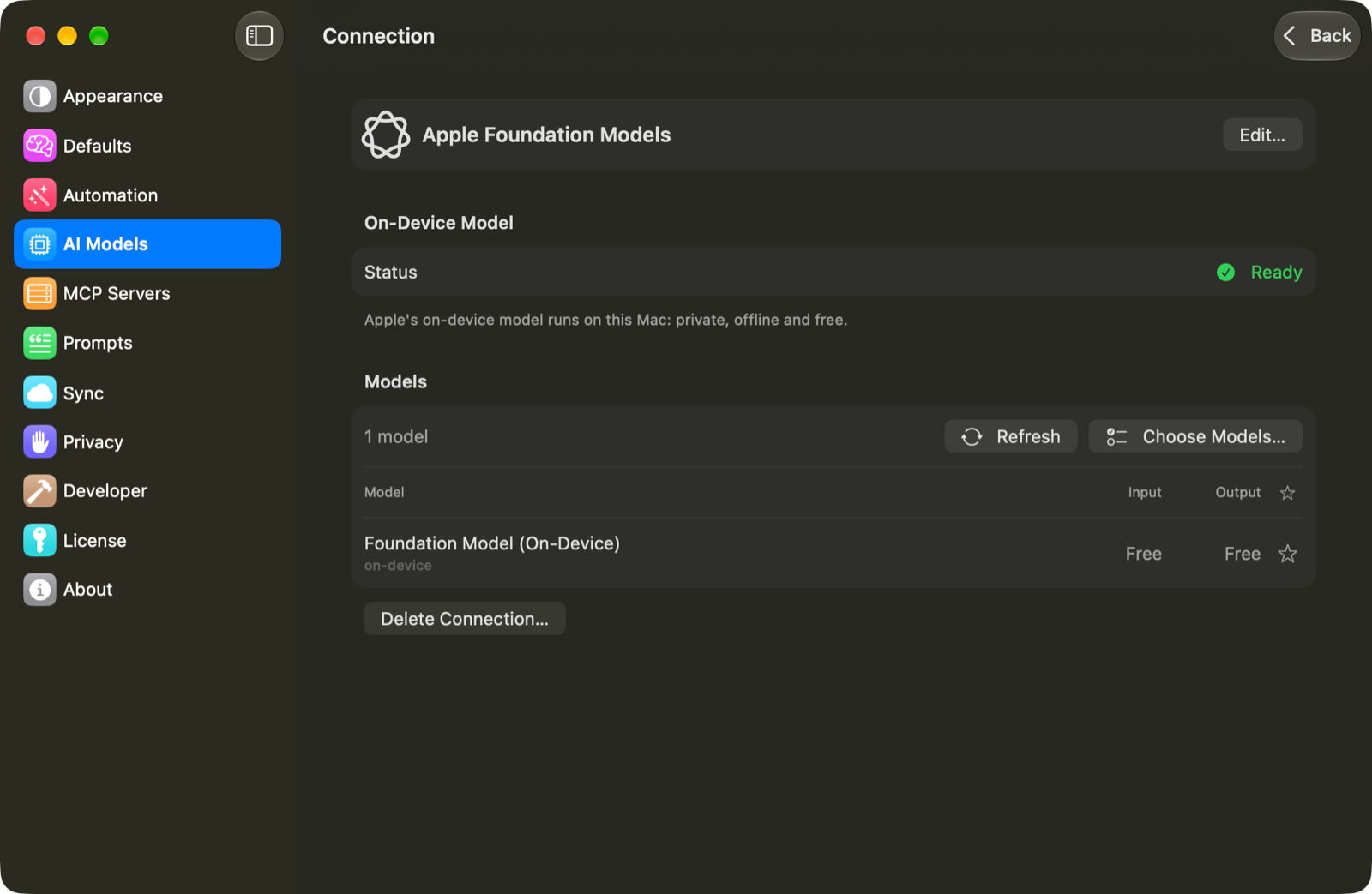
Vinaa uses the on-device model for this connection. AI tools are not available with it, so use another connection for tasks that need web search or connected tools.
If the model is unavailable
Turned off: enable Apple Intelligence in System Settings.
Not ready: complete Siri AI setup and allow the download to finish, then click Check Again.
Not supported on this Mac: use another connection, such as a cloud provider.
Needs macOS 27: this can appear for an existing connection on an older Mac. Update to a supported macOS version if your Mac supports it, or select another model.
If you already added this connection, open it in AI Models to check its status. Apple Foundation Models appears only once in your connections.
Related articles
Which AI connection should I use?
Run models locally with Ollama
Run models locally with LM Studio
Fix AI connection problems
Was this helpful?
Still need help? Ask the team