Get an OpenAI API key
Create an OpenAI API key and connect it to Vinaa to use OpenAI models with usage-based billing.
Written By Sujeevan Nagarajah
Last updated 22 days ago
An API key is a secret code that lets Vinaa send requests through your OpenAI account. You don't need to write code or install developer tools to use it in Vinaa.
Set up API access and billing
OpenAI API access is managed separately from ChatGPT. Signing in to ChatGPT doesn't automatically give Vinaa an API key or a funded API account. Some eligible subscriptions offer API credits you must claim separately; check OpenAI's API credit eligibility.
Sign in or create an account at the OpenAI Platform.
Open your organization's API billing page.
Check whether usable API credits are available.
If you need to fund the account, follow the billing page's payment and credit-purchase steps.
API costs depend on the model and how much you send and receive. Providers measure text in tokens—small pieces of text. Check OpenAI's API pricing before choosing a model, and review your usage in the Platform.
Create a key
Open the API keys page.
Choose the project you want to use for Vinaa, if prompted.
Create a new secret key with a name you recognize, such as Vinaa.
Copy the complete key to use in the next section.
OpenAI's API quickstart links to key creation. Keep the key private; anyone with it may be able to use your API account.
Add OpenAI to Vinaa
Open Vinaa → Settings… (⌘,).
Select AI Models.
Click Add Connection in the toolbar.
Select OpenAI under Model Providers.
Enter a recognizable Name, or keep the suggested name.
Paste your key into API Key.
Click Continue to check the key and load models.
In Choose Models, select the models you want available in Vinaa.
Click Add Connection.
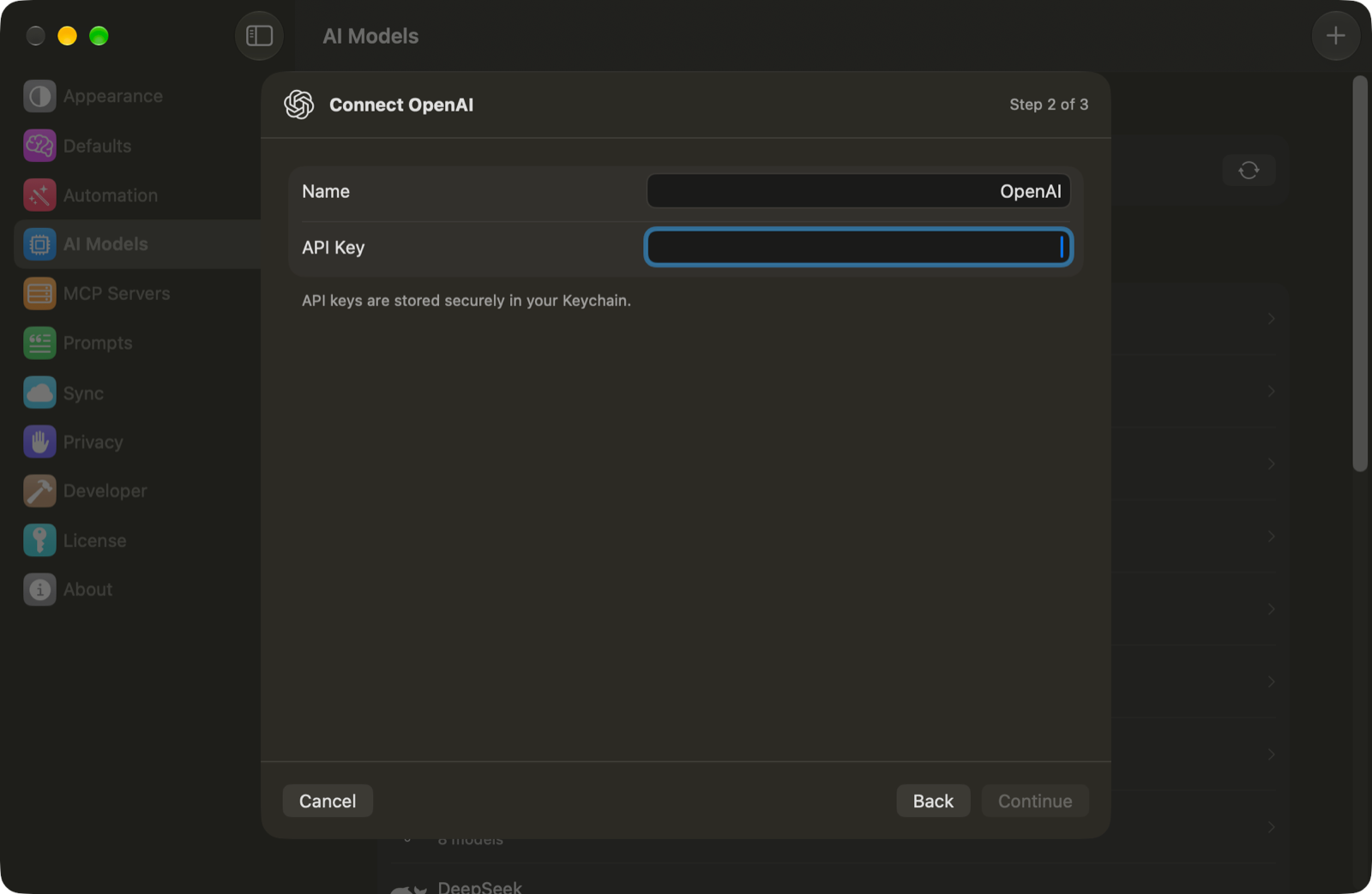
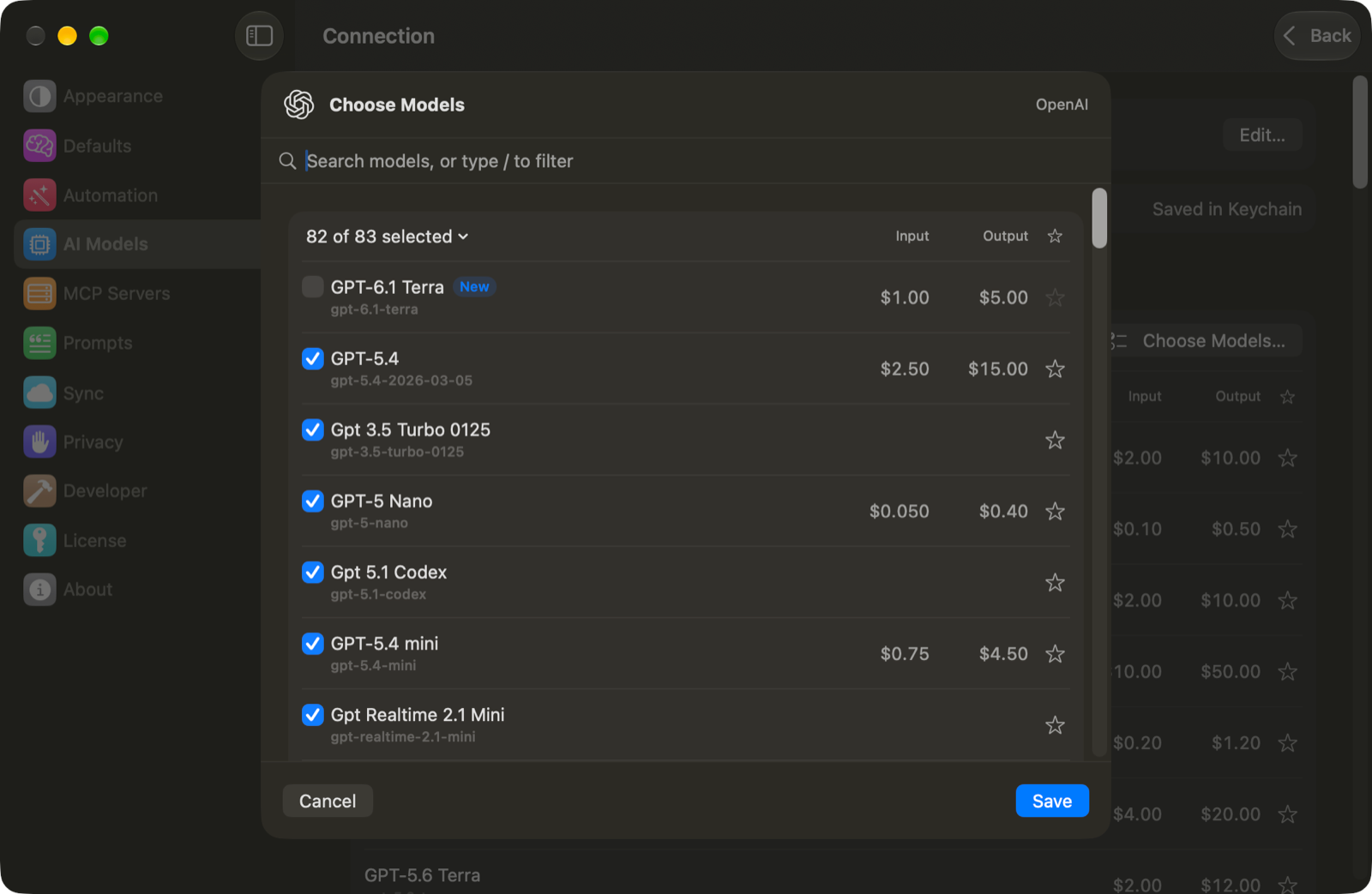
Vinaa stores your API key in the macOS Keychain. In a chat, press ⌘L to choose one of the OpenAI models you added.
If your first message fails
A valid key doesn't guarantee available credits or access to every model. Read the error, check the billing balance for the key's organization and project, and confirm the model is available to your account. If a key is rejected, copy it again without extra spaces or create a replacement.
To replace a saved key, open the connection in AI Models and click Edit….
Related articles
Which AI connection should I use?
Use your ChatGPT plan in Vinaa
Choose a model for a chat
Fix AI connection problems
Was this helpful?
Still need help? Ask the team