Search all your chats
Search chat titles, previews and message text to return to an earlier conversation.
Written By Sujeevan Nagarajah
Last updated 22 days ago
Use Search Chats when you remember a topic or phrase but cannot remember which chat contains it. Results appear in the Chat List, and message matches can take you directly to the relevant passage.
Search across active projects
Choose All Projects from the picker at the top of the Folder Panel.
Select All Chats.
Choose Edit → Find → Search Chats, or press ⌥⌘F.
Enter your search in the Search Chats field.
Select a result in the Chat List.
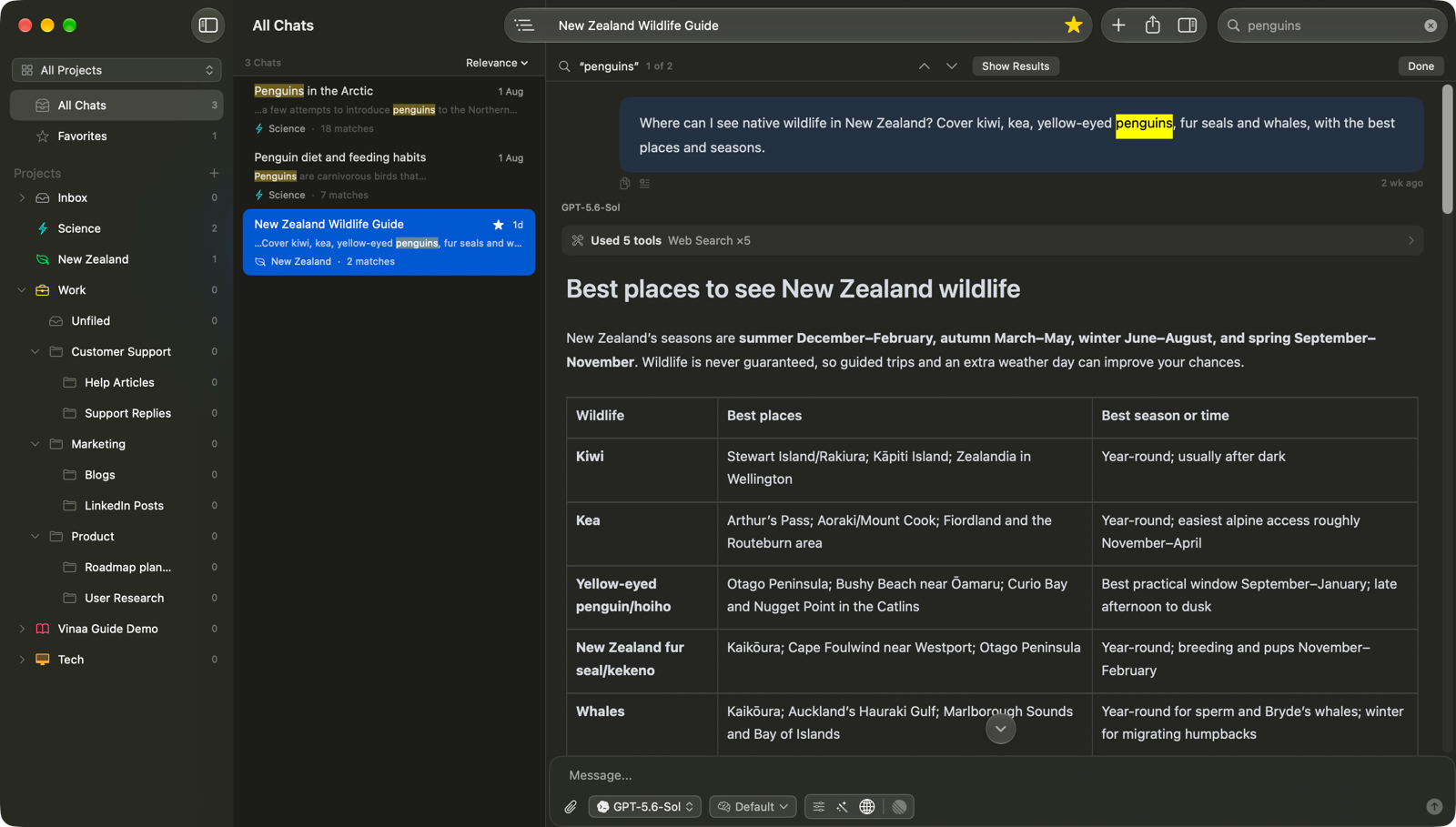
Search follows your current project and Folder Panel selection. Select a project, folder or Favorites to narrow it. If Search All Chats appears above the results, clicking it removes the Folder Panel restriction but keeps the project choice at the top. Choose All Projects as well if you want to search across active projects.
Archived chats are separate. Choose Archived Projects, then All Chats, to search archived work.
Choose useful search terms
Enter several words, such as
ferry booking, to find messages containing all those words in any order.Put the entire query in straight double quotes, such as
"South Island", to search for that phrase.Use at least two letters or digits to search message text. Shorter searches check titles and previews only.
If you see Indexing messages…, Vinaa is preparing its message search index. Give it time to finish before judging the results.
Change the result order
Open the sort menu above the results and choose:
Relevance to prioritize title matches and the strongest message matches.
Most Recent to put the most recently updated chats first.
Read matching passages
Selecting a message result opens the chat at a matching passage. The compact bar above the thread shows the query and match count. Use Next Match or Previous Match to move through its matches.
Click the match count to list matches in Content Nav. Press ⌘F if you want to edit the query in Find in Chat; this searches the entered text as one phrase within the open chat. A result matching only a title or preview may open without a highlighted message.
Related articles
Find a chat
Find text in a chat
Understand projects and folders
Was this helpful?
Still need help? Ask the team