Get a Google Gemini API key
Get a Gemini API key from Google AI Studio and add it to Vinaa's Google connection.
Written By Sujeevan Nagarajah
Last updated 22 days ago
An API key is a secret code that lets Vinaa use Gemini through your Google project. In Vinaa's provider list, the connection is called Google.
Check the free tier and billing
Google offers a Gemini API free tier for eligible projects and models, with request and usage limits. Some models and tools require paid access. Check Google's API pricing for current availability; a key doesn't unlock every model.
Paid API use is managed through the Google Cloud billing account linked to the project. It is based on usage, including tokens—small pieces of text the model processes—and applicable tools. See Google's API billing guide before enabling paid access.
Get your key in Google AI Studio
Sign in with your Google account.
Accept the service terms if prompted.
Copy the key created for your default project, if one is provided.
If you need a new key instead:
Click Create API key.
Follow the dialog to name the key and choose or create its Google Cloud project.
Create the key.
Copy the complete key.
Every key belongs to a Google Cloud project, which controls billing and limits. Google may create a default project and key for new users. Existing Google Cloud users may need to import a project first; follow Google's API key guide.
Add Google to Vinaa
Open Vinaa → Settings… (⌘,).
Select AI Models.
Click Add Connection in the toolbar.
Select Google under Model Providers.
Enter a Name, or keep the suggested name.
Paste the key into API Key.
Click Continue.
In Choose Models, select models available to your project's tier.
Click Add Connection.
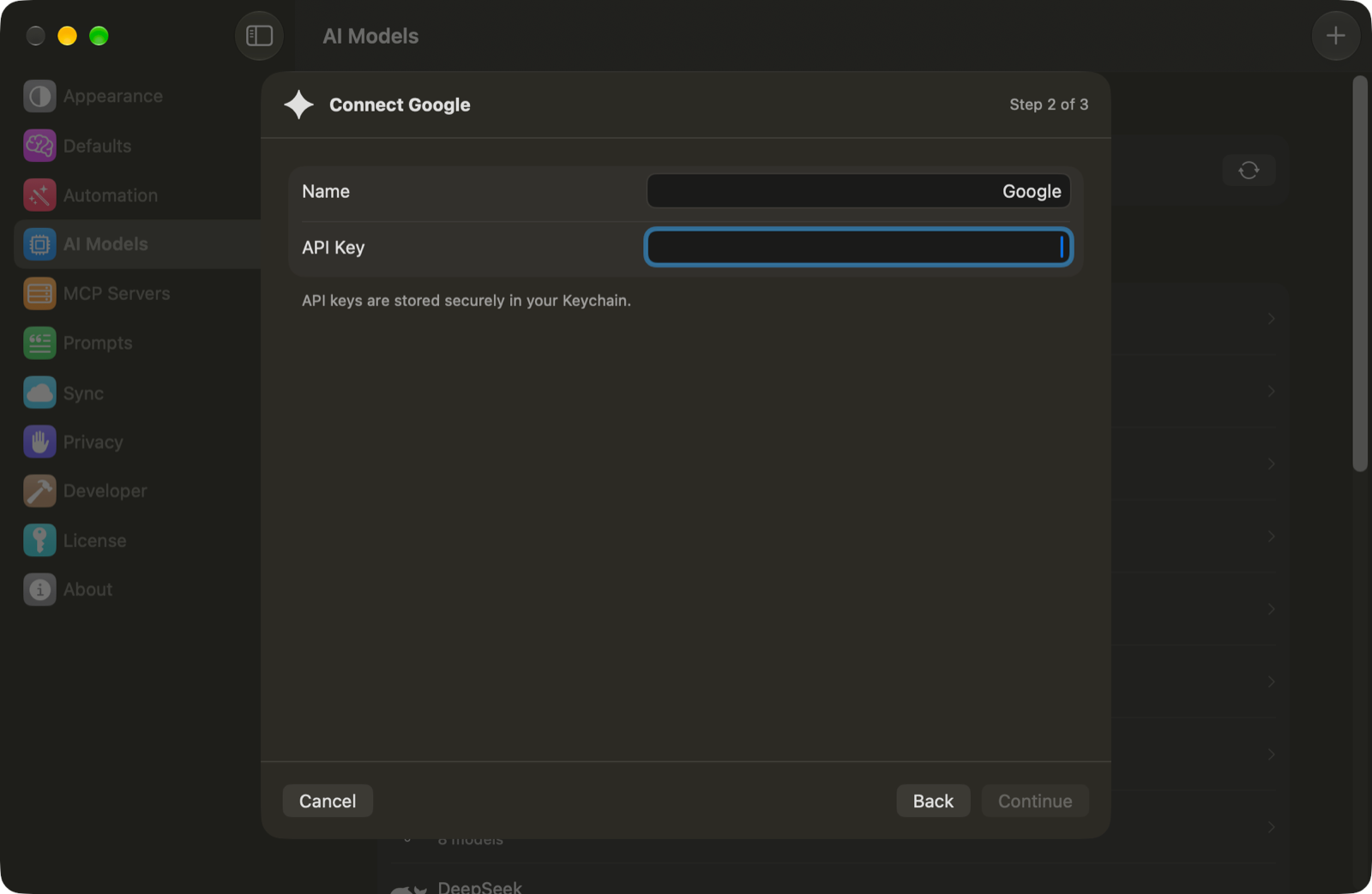
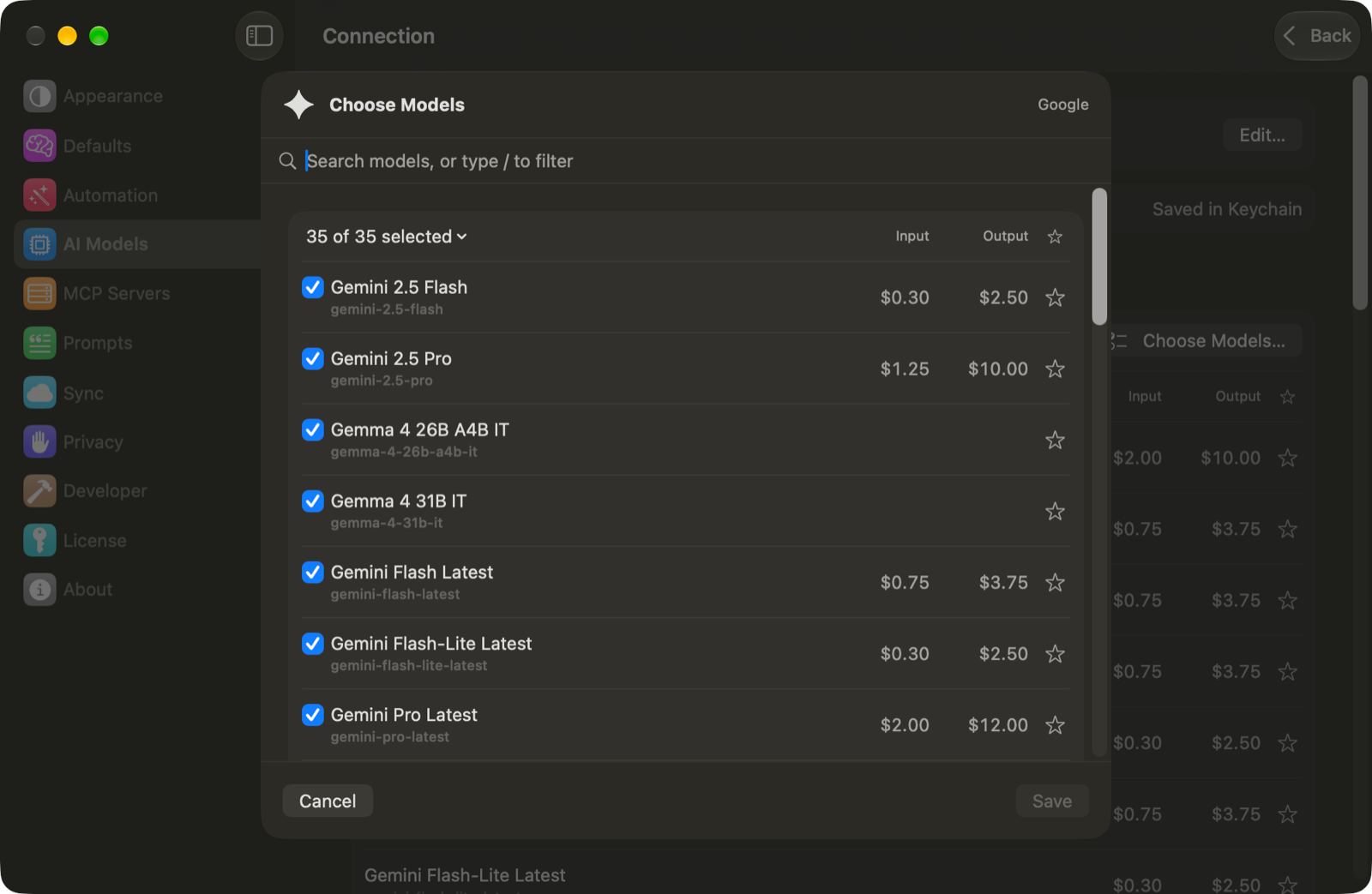
Vinaa stores your key in the macOS Keychain. Press ⌘L in a chat to choose a Gemini model you added.
If a model or tool doesn't work
A model can appear in the list even when your project doesn't have quota to use it. If Google reports a limit or billing error, check the project's tier and available usage in AI Studio. Google's troubleshooting guide also covers projects that aren't eligible for the free tier.
Google Search availability varies by model and tier. A free-tier text reply working doesn't mean Search is available for that model. Check the model's entry in Google's pricing page, then try without that tool, choose a supported model, or enable paid billing if appropriate.
If an older key stops working, create a replacement in AI Studio following Google's current key guidance. In Vinaa, open the connection in AI Models and click Edit… to replace it.
Related articles
Which AI connection should I use?
Connect an AI provider
Use AI tools
Fix AI connection problems
Was this helpful?
Still need help? Ask the team