Run models locally with LM Studio
Download a model in LM Studio, start its local server, and connect it to Vinaa.
Written By Sujeevan Nagarajah
Last updated 22 days ago
LM Studio lets you download and run AI models on your Mac. Once a model is downloaded, its local server can answer Vinaa's requests without an internet connection. See LM Studio's offline guide.
Prepare LM Studio
Download the Mac version of LM Studio.
Install LM Studio.
Open LM Studio.
Open its Discover tab.
Download a chat model suitable for your Mac's available memory.
Open LM Studio's Chat tab.
Open the model loader at the top.
Select the model you downloaded to load it into memory.
Open LM Studio's Developer tab.
Turn on Start server.
Downloading saves the model to disk; loading makes it ready to answer. LM Studio's getting started guide, download guide, and server guide explain these steps in more detail.
Add the connection in Vinaa
Choose Vinaa → Settings → AI Models.
Click Add Connection in the toolbar.
Choose LM Studio under On This Mac & Local Servers.
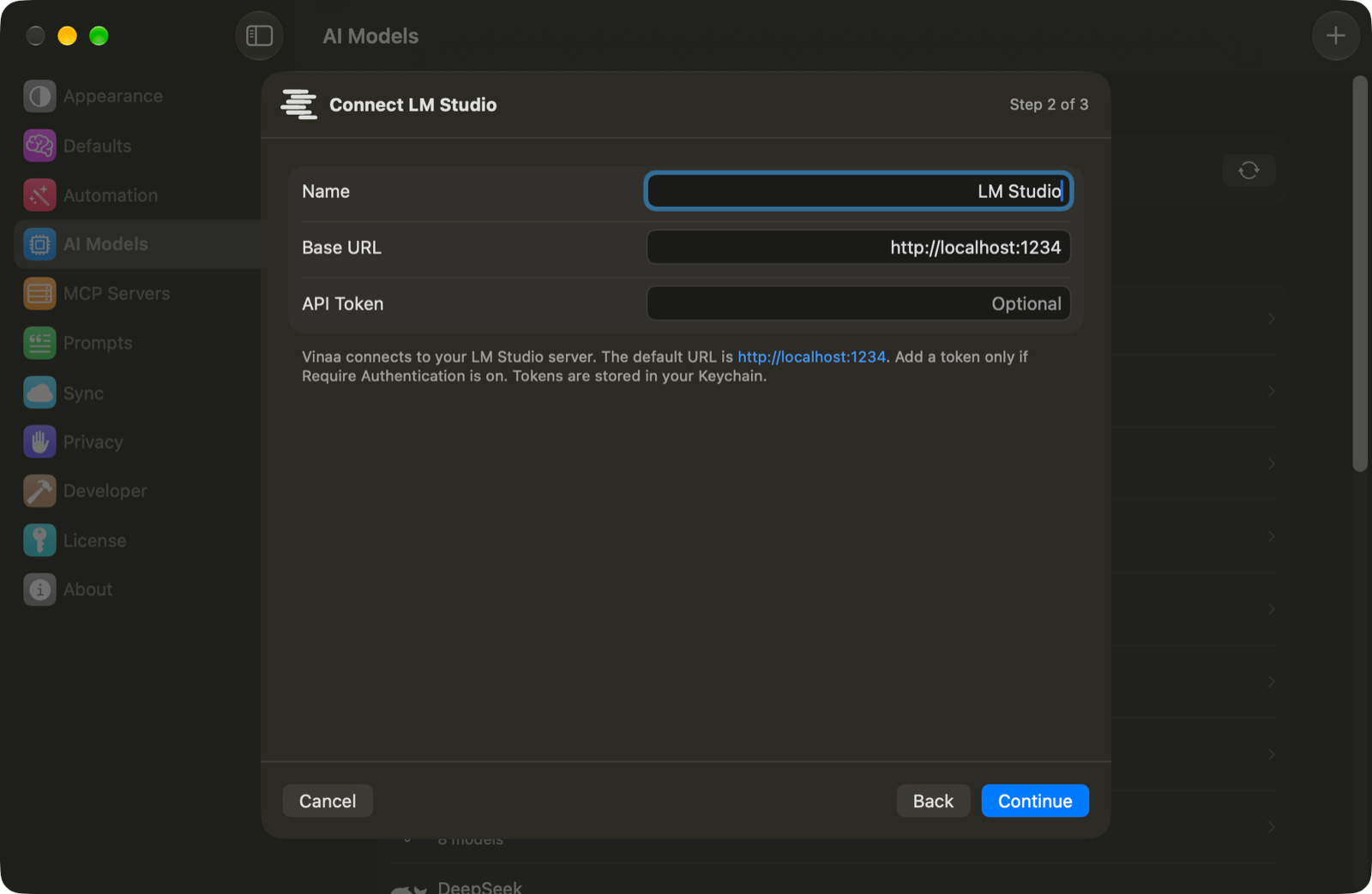
Check Base URL. The default is
http://localhost:1234; use the server address shown by LM Studio if yours differs.Leave API Token empty unless you enabled authentication in LM Studio.
Click Continue.
Select the models you want in Choose Models.
Click Add Connection.
Press ⌘L in a chat to select your LM Studio model. Keep LM Studio's server running while you chat.
If your server requires a token
A token is a secret credential that allows an app to use the server. LM Studio does not require one by default.
If you turned on Require Authentication in LM Studio, create a token through Manage Tokens in its server settings. Copy it into Vinaa's API Token field. Follow LM Studio's authentication guide when choosing permissions.
For an existing connection, open it in AI Models, click Edit…, enter the token, then click Save.
Adjust the context length
Context length is how much text a model can consider at once, measured in tokens—small pieces of text. The model's advertised maximum may be larger than the context it is actually loaded with.
Vinaa checks the loaded context size when preparing a chat. To change it, adjust the model's load settings in LM Studio and reload the model. See LM Studio's per-model defaults. Larger contexts need more memory.
After downloading more models, open the connection in AI Models and click Refresh.
Related articles
Run models locally with Ollama
Use Apple's on-device model
Fix AI connection problems
Was this helpful?
Still need help? Ask the team