Save and reuse prompts
Save reusable requests and insert them into Chat Input with a slash command.
Written By Sujeevan Nagarajah
Last updated 22 days ago
A saved prompt is a template for text you send often, such as a writing checklist or a trip-planning request. Inserting one gives you editable text in Chat Input; it does not send the message or change the conversation's system instructions.
Save a prompt
Open Vinaa → Settings → Prompts.
Click Add Prompt in the toolbar.
Enter a Name.
Review the Command, the short name you will type after
/in chat.Choose a Scope: Global for every project, or a specific project.
Enter your reusable request in Body.
Click Save.
You can also add a Description to help identify the prompt, or turn on Favorite.
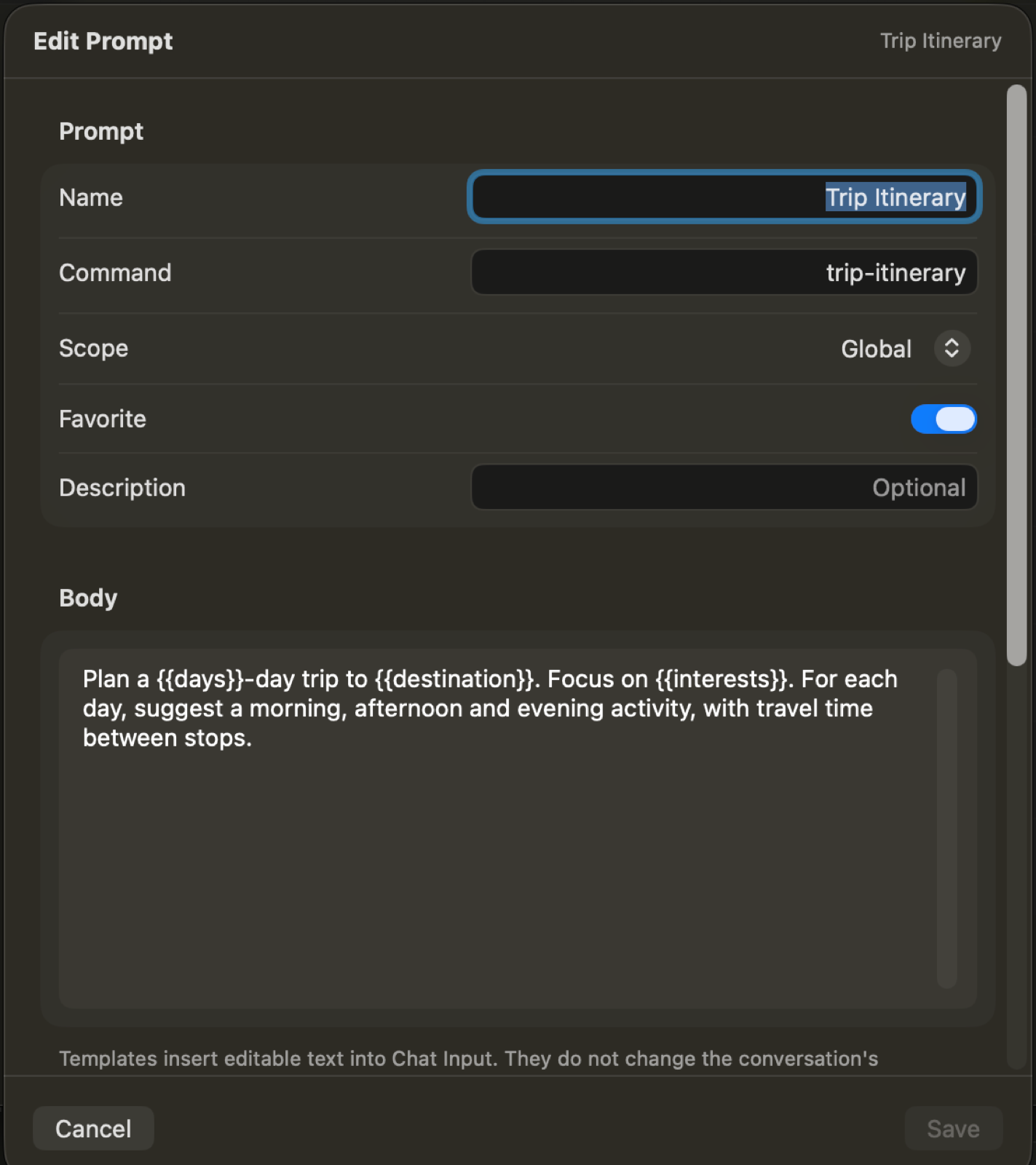
Global prompts appear under App-wide Prompts in settings. Prompts saved to a project are available when you use that project. You can also manage them through Chat → Project Settings... → Prompts.
Use a saved prompt
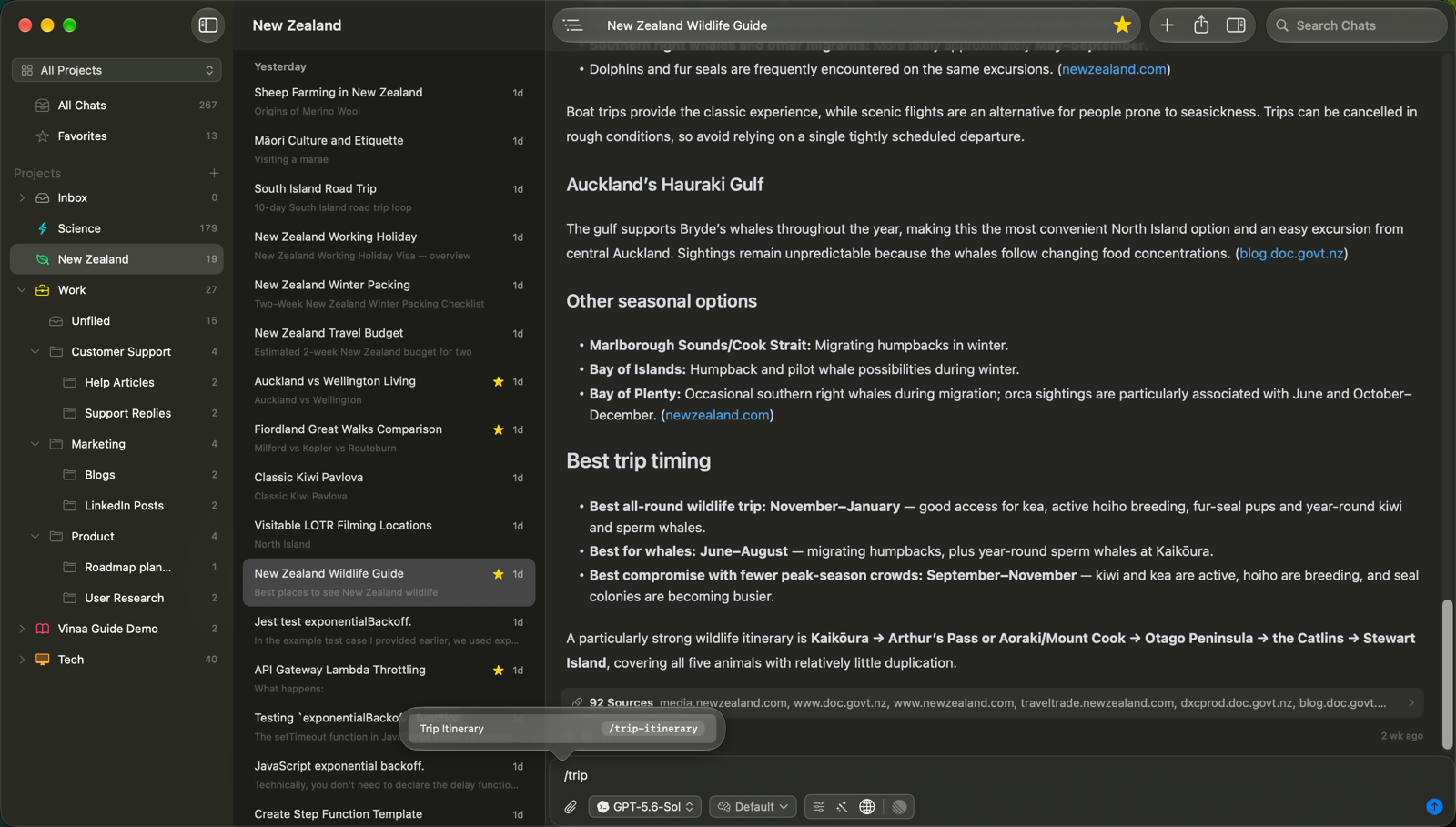
Click Chat Input.
Type
/followed by part of a command or prompt name.Select the prompt from the suggestions.
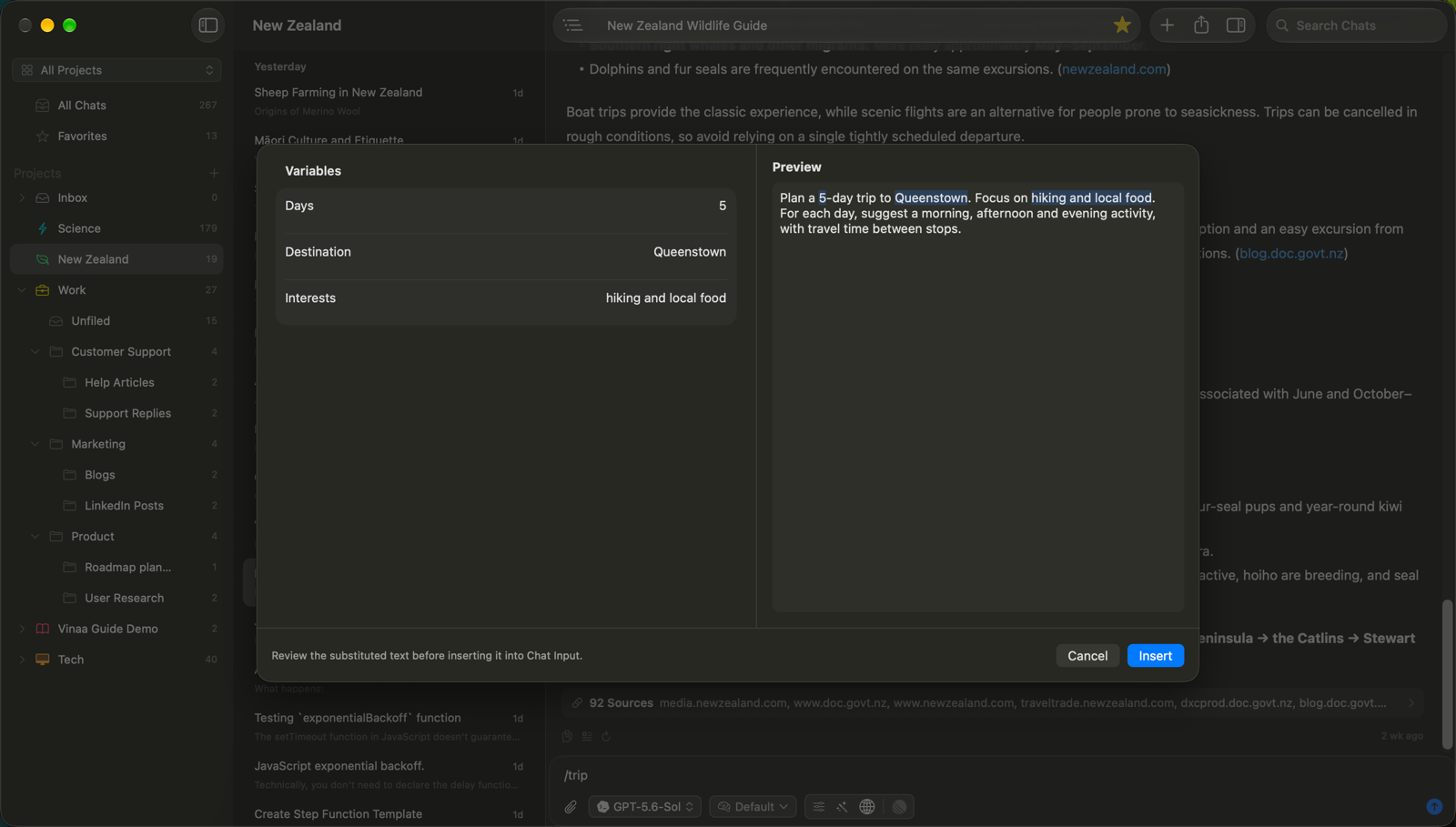
Fill in any requested variables.
Click Insert if a variable sheet appears.
Review or edit the inserted text.
Press Return to send your message.
Add information that changes each time
Variables are placeholders that Vinaa fills when you use a prompt. For example, put Plan a three-day trip to {{destination | text:required}}. in Body to ask for a destination each time.
The editor's Variables section lets you copy a placeholder and paste it into Body. Choices include Optional Text, Required Text, Optional Text Area, and Required Text Area.
Built-in variables fill automatically: Current Date, Current Time, Current Date and Time, Project Name, Conversation Title, and Clipboard. Review Preview before inserting, especially when a prompt includes clipboard contents. Required inputs must be completed before you can insert the text.
Save text from an existing message
Click Add to Prompt beneath a message to start a prompt from that text. Review its name, command, scope and body, then click Save.
To maintain your library, use Search prompts in Prompts settings. Right-click a prompt to Edit, Favorite, Duplicate, or Delete it.
Related articles
Start your first chat
Create and manage projects
Regenerate a response and fix errors
Was this helpful?
Still need help? Ask the team