Regenerate a response and fix errors
Retry the latest request, continue paused work, or get help with a failed response.
Written By Sujeevan Nagarajah
Last updated 22 days ago
If an answer needs another attempt, you can regenerate the latest response. If the AI stopped because it reached a limit, use Continue when offered to let it keep working.
Regenerate the latest response
Click Regenerate response, the circular arrow beneath the latest response.
Review your original request, now back in Chat Input.
Change the text or attachments if needed.
Choose another model or adjust the available chat controls if needed.
Press Return to generate the replacement.
Chat Input shows Regenerating latest response while you prepare the request. Click Cancel there to leave regeneration and restore the draft you had before.
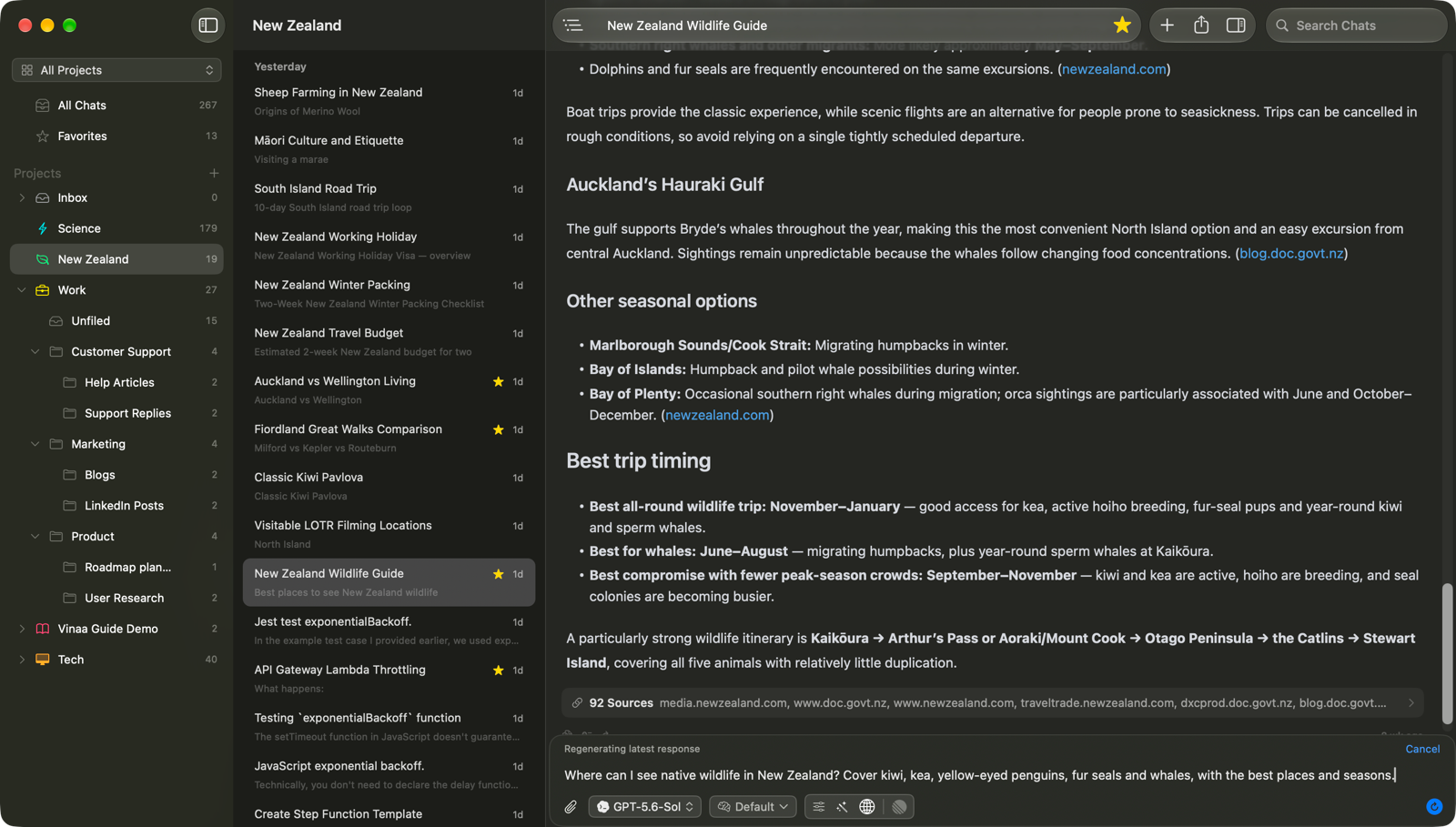
Regeneration replaces the latest request and its response when you resend. It does not keep both versions. Only the latest response can be regenerated, and older sent messages cannot be edited. To correct something earlier, send a follow-up message with the correction.
Continue a paused response
Click Continue on a notice such as Paused at the tool step limit, Reached the maximum reply length, or The provider paused this response. Vinaa asks the AI to pick up its work.
The tool step limit is set by Max Tool Steps in Vinaa → Settings → Defaults. A pause at that limit is a checkpoint, not necessarily a connection problem.
If The response ended unexpectedly appears, use Regenerate... when offered. A response stopped by the provider's safety system may offer Report... instead of Continue.
Recover from an error
Read the Error card before retrying. Its message can explain a connection failure, an account limit, an unsupported feature or another provider problem.
Address the cause described in the card, such as restoring your connection or checking the AI provider's account.
Click Regenerate... when available.
Review the request in Chat Input.
Press Return to retry.
You can choose another model before resending if the error concerns a feature the current model cannot use.
Use Copy Error to copy the message. You can also select its text. If you need help, click Report... to open the problem-report sheet, then review the details before sending. See Report a problem for the full reporting flow.
Related articles
Fix AI connection problems
Choose a model for a chat
Use AI tools
Report a problem
Was this helpful?
Still need help? Ask the team