Report a problem
Send a private problem report to the Vinaa team and keep its Support ID for follow-up.
Written By Sujeevan Nagarajah
Last updated 22 days ago
Use Report a Problem… when Vinaa behaves unexpectedly or an AI request fails. You can send a report even when automatic crash reporting is turned off.
Open a report
Choose Help → Report a Problem…. If an error card offers Report..., use that action to report the failure with its error message attached.
Keeping the affected chat open helps Vinaa attach the relevant technical details about its latest AI request. It does not attach the chat history or your files.
Describe and send the problem
In What happened?, describe what you were trying to do, what you expected and what happened instead.
Enter Email (optional) if you want the team to be able to reply.
Turn on Include recent logs if you want to attach recent app logs.
Expand Details that will be sent to review the technical details and any attached error message or logs.
Click Send.
For example: “In my New Zealand trip chat, the response stopped after I asked for ferry options. I expected a list of routes. It stopped with the error shown.” Include steps that let the team reproduce the issue, without adding passwords or API keys.
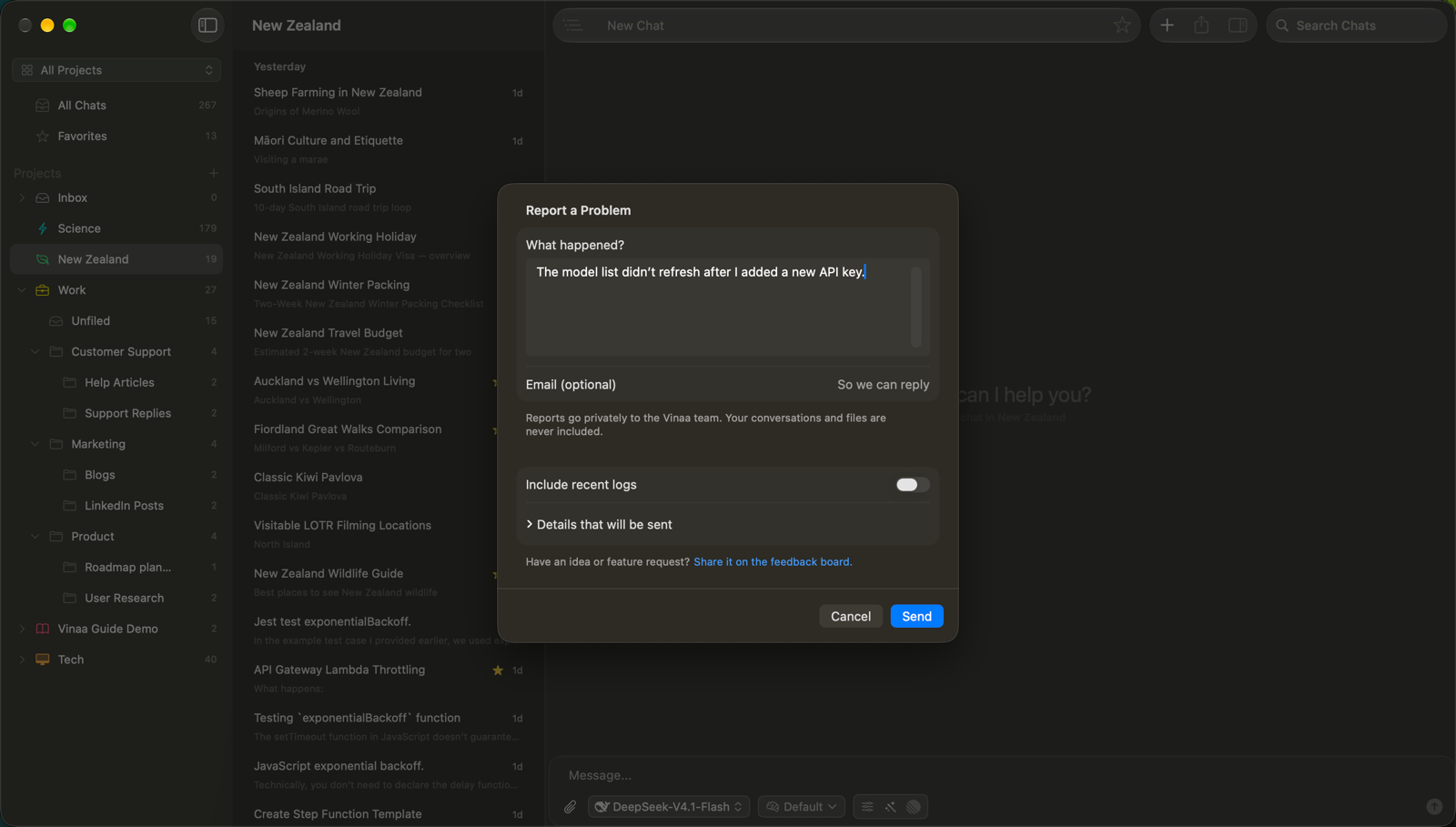
The report includes what you write and the technical details shown. If Vinaa cannot send it, the sheet displays an error. Check your internet connection and try again.
Keep the Support ID
After Report sent appears, use the copy button beside Support ID. Include this ID if you follow up with support so the team can find your report.
Click Email Support… to open an email draft with the report ID, or Done to close the sheet.
For license or trial problems, you can also copy the separate Support ID in Vinaa → Settings... → License. This identifies your Mac for licensing support; it is different from the ID returned by a problem report.
Enable extra logs when asked
Open Vinaa → Settings... → Developer.
Turn on Send Debug Logs.
Repeat the steps that caused the problem.
Follow the support team's instructions for reporting the result.
Only enable this when support asks. It turns off automatically after three days, and you can switch it off earlier.
For an idea or feature request, use Help → Feedback.
Related articles
Fix AI connection problems
Regenerate a response and fix errors
Privacy, crash reports and analytics
Start your free trial or activate a license
Was this helpful?
Still need help? Ask the team