Find text in a chat
Find words in the open conversation and move between matching passages.
Written By Sujeevan Nagarajah
Last updated 22 days ago
Use Find in Chat… to search a conversation without scrolling through it. It searches your messages and AI replies throughout the thread, including messages above the part currently on screen.
Find a word or phrase
Open the chat you want to search.
Choose Edit → Find → Find in Chat…, or press ⌘F.
Enter a word or phrase in Find in Chat.
Vinaa highlights matching text and shows your position, such as “2 of 8.” It starts near where you are reading and wraps around the conversation as you move between matches.
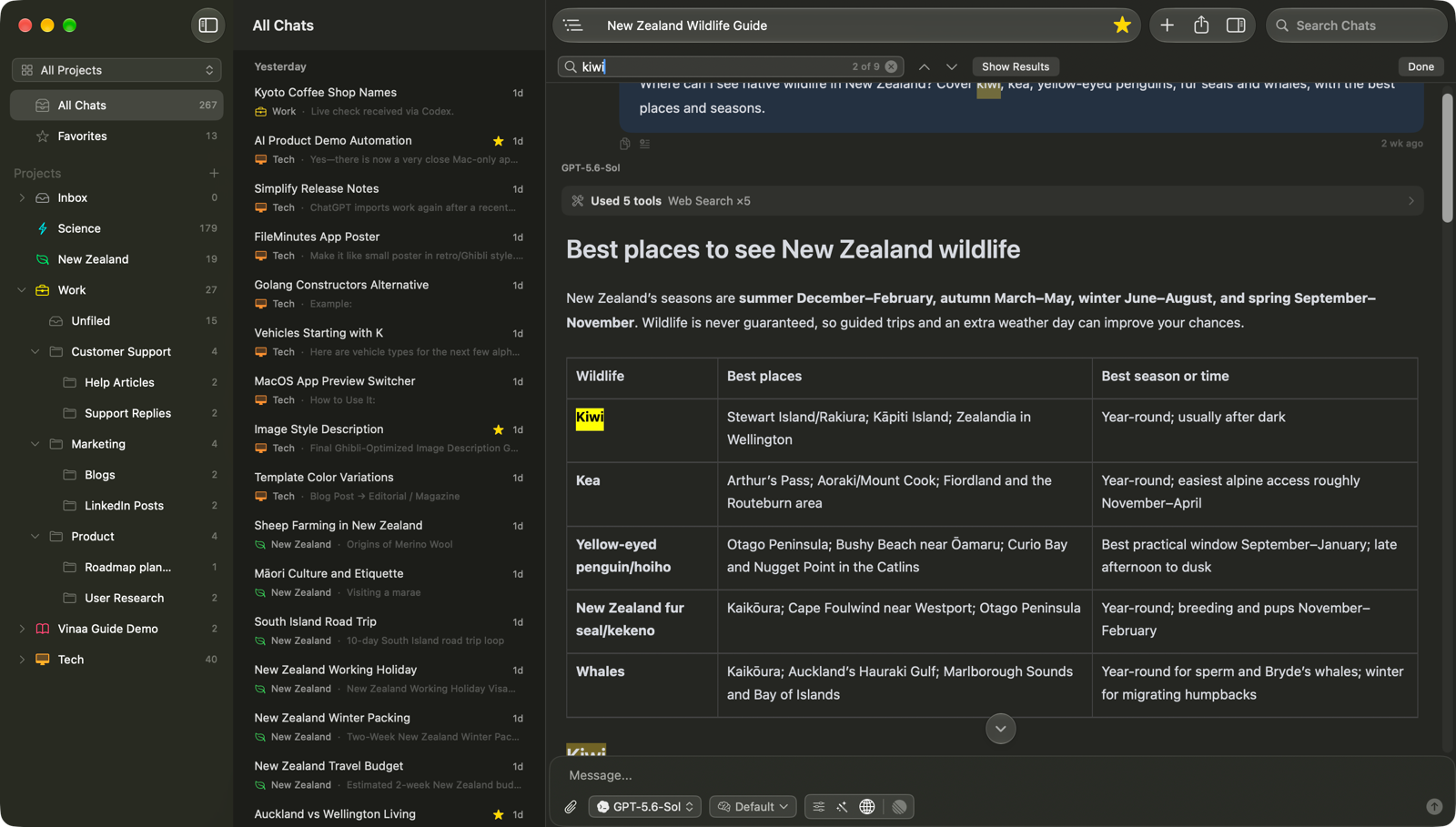
The entered text is treated as one continuous phrase. You do not need to put quotation marks around it. Find searches message text, including code within replies, but does not search thinking blocks, tool inputs or tool results.
Move between matches
Press ⌘G for Find Next.
Press ⇧⌘G for Find Previous.
Use the Next Match and Previous Match arrows in the find bar.
While typing in the find field, use Return or ⇧Return to move forward or backward.
If Not found appears, try a shorter phrase or check the spelling.
Find selected text
Select text in the conversation.
Choose Edit → Find → Use Selection for Find, or press ⌘E.
The find bar opens with your selected text as the query.
Show a list of matches
Click the match count, or turn on Show Results. The control's help text is Show Results in Content Navigation. Content Nav opens with matching passages grouped under their messages and headings. Click a passage to jump to it.
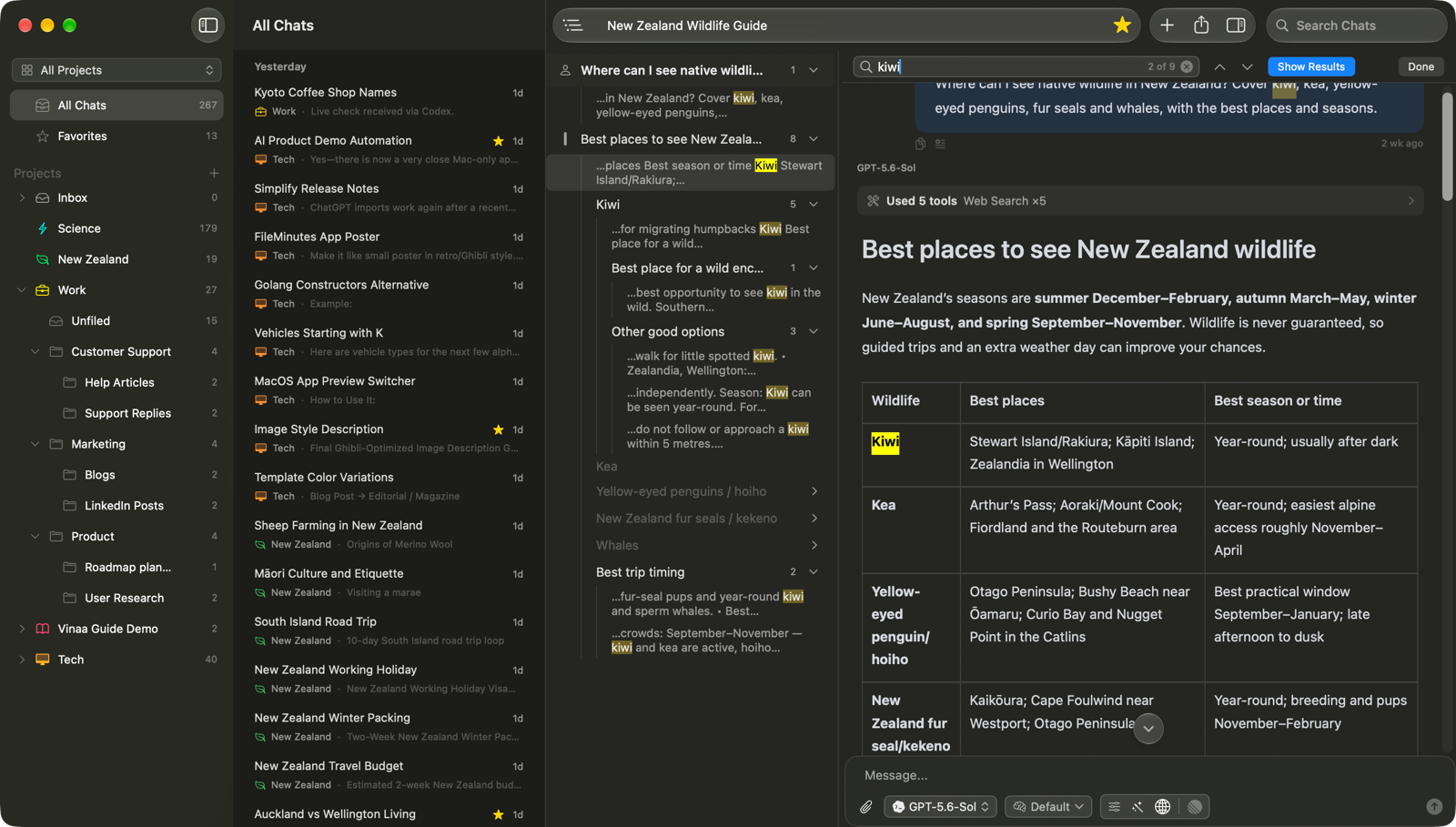
Click Done to close Find and clear its highlights.
Jump to a message or heading
For browsing rather than matching text, choose Navigation → Jump to Message… (⌘J). Type to filter message titles and reply headings, then select an entry. Use the right arrow to expand an entry with headings.
To search other conversations, use Search Chats (⌥⌘F).
Related articles
Search all your chats
Find a chat
Read thinking, steps and sources
Vinaa keyboard shortcuts
Was this helpful?
Still need help? Ask the team