Run models locally with Ollama
Connect Vinaa to Ollama to chat with downloaded models on your Mac or models on an Ollama server.
Written By Sujeevan Nagarajah
Last updated 22 days ago
Ollama runs AI models on your computer and makes them available to apps such as Vinaa. A local model is an AI downloaded to your Mac; larger models need more memory and storage.
Install Ollama and download a model
Download the Mac version from Ollama.
Open the downloaded disk image.
Drag Ollama to your Applications folder.
Open Ollama.
Complete its setup, allowing it to install its Terminal command if asked.
Open Terminal on your Mac.
Enter
ollama pull llama3.2:3band press Return.Wait for the download to finish.
This example downloads Llama 3.2 3B. You can use another model from Ollama's library by replacing llama3.2:3b with its name. See Ollama's Mac installation guide and command reference for more help.
Connect Ollama to Vinaa
Choose Vinaa → Settings → AI Models.
Click Add Connection in the toolbar.
Choose Ollama under On This Mac & Local Servers.
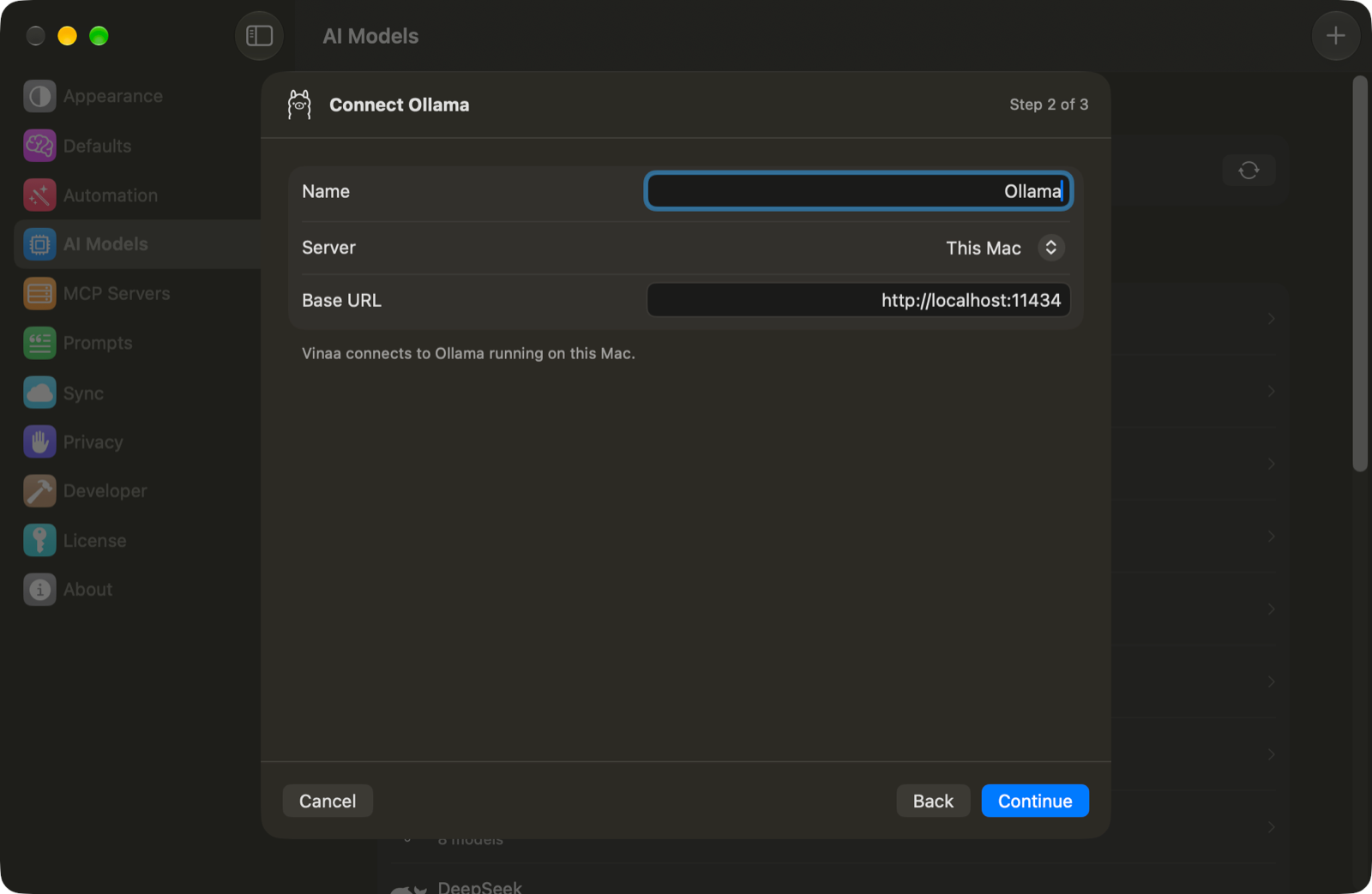
Leave Server set to This Mac.
Check that Base URL is
http://localhost:11434, unless you changed Ollama's address.Click Continue.
Select the downloaded models you want in Choose Models.
Click Add Connection.
In a chat, press ⌘L to choose one of your Ollama models. Keep Ollama running while you chat. Vinaa does not install Ollama or download models for you.
Use Ollama Cloud or another server
The Server menu also offers:
An API key is a secret credential that lets Vinaa use your account. Direct Ollama Cloud access requires a key but does not require Ollama installed on your Mac. Cloud requests run on Ollama's servers; check Ollama Cloud for current plans and usage limits. See Ollama authentication for the difference between local and cloud access.
To change an existing connection, open it in AI Models, click Edit…, then click Save after your changes. After downloading another model, click Refresh in the connection's Models section.
Related articles
Run models locally with LM Studio
Use Apple's on-device model
Fix AI connection problems
Was this helpful?
Still need help? Ask the team